
Turn your LG smart TV into a digital sign with the Quickesign app, without an external player. This guide is for LG consumer TVs with webOS; for an LG commercial signage display, see LG WebOS Signage (commercial grade).
What you’ll need
- An LG webOS TV connected to the internet (Wi-Fi or Ethernet), its remote, and an LG account to download apps.
- A Quickesign account, and a computer or phone to link the screen.
- App availability can vary by TV model, webOS version and region.
Steps
-
Update the TV first: on many models, Settings > All Settings > Support > Software Update > Check for Updates (on older models, General > About This TV). Menu names differ by model and webOS version.
-
Press Home on the remote and open Apps (or LG Apps; on older TVs, the LG Content Store). Search for Quickesign, choose Install, then Launch. Quickesign shows an activation code.
-
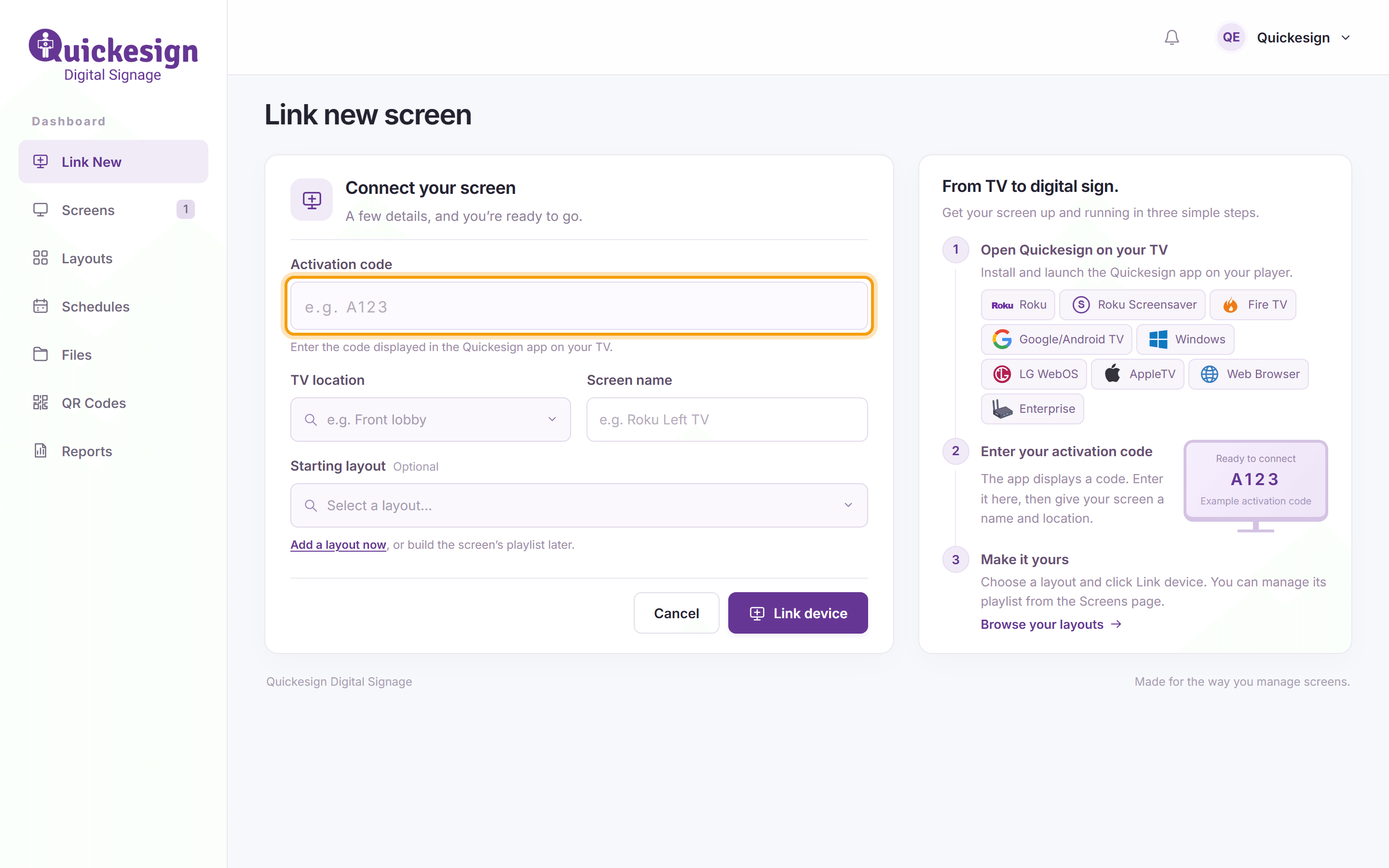
On your computer or phone, sign in at dashboard.quickesign.net and click Link New. Enter the Activation code, a TV location and a Screen name, choose a Starting layout if you have one, and click Link device.
-
Choose what the TV plays: in Screens, click Edit on the TV’s row, add a layout to its playlist and click Save changes (see Adding Layouts to the Screen’s Playlist).
-
To return to your sign after using another app, press Home and choose Quickesign. After turning the TV off and on, check that Quickesign is open.

Troubleshooting
- I can’t find Quickesign in the app store. Check the internet connection and software updates, and make sure the LG Services Country setting matches where you are. If it still doesn’t appear, send us your TV model, webOS version and country.
- The app won’t install. Check the internet connection, sign in to your LG account, accept any LG app store agreements, and make sure the TV has free storage.
- The TV is linked but my content isn’t showing. Keep Quickesign open, check that a layout is on the right screen’s playlist and that the TV is online, then restart the TV and reopen Quickesign.
For help, email mike@quickesign.com with your TV model, webOS version, country and a description or photo of the problem.
What’s next
Creating a Simple Layout: make something to show.