
Install Quickesign on a Google TV or Android TV, link it to your account, and set it to start on its own.
What you’ll need
- A Google TV or Android TV connected to the internet and signed in to your Google account.
- A Quickesign account, and a computer or phone to link the screen.
Steps
-
Add the app to your Google account from the Google Play page for Quickesign, choosing your TV, or search for Quickesign in the Google TV apps. Open it on the TV; it shows an activation code.
-
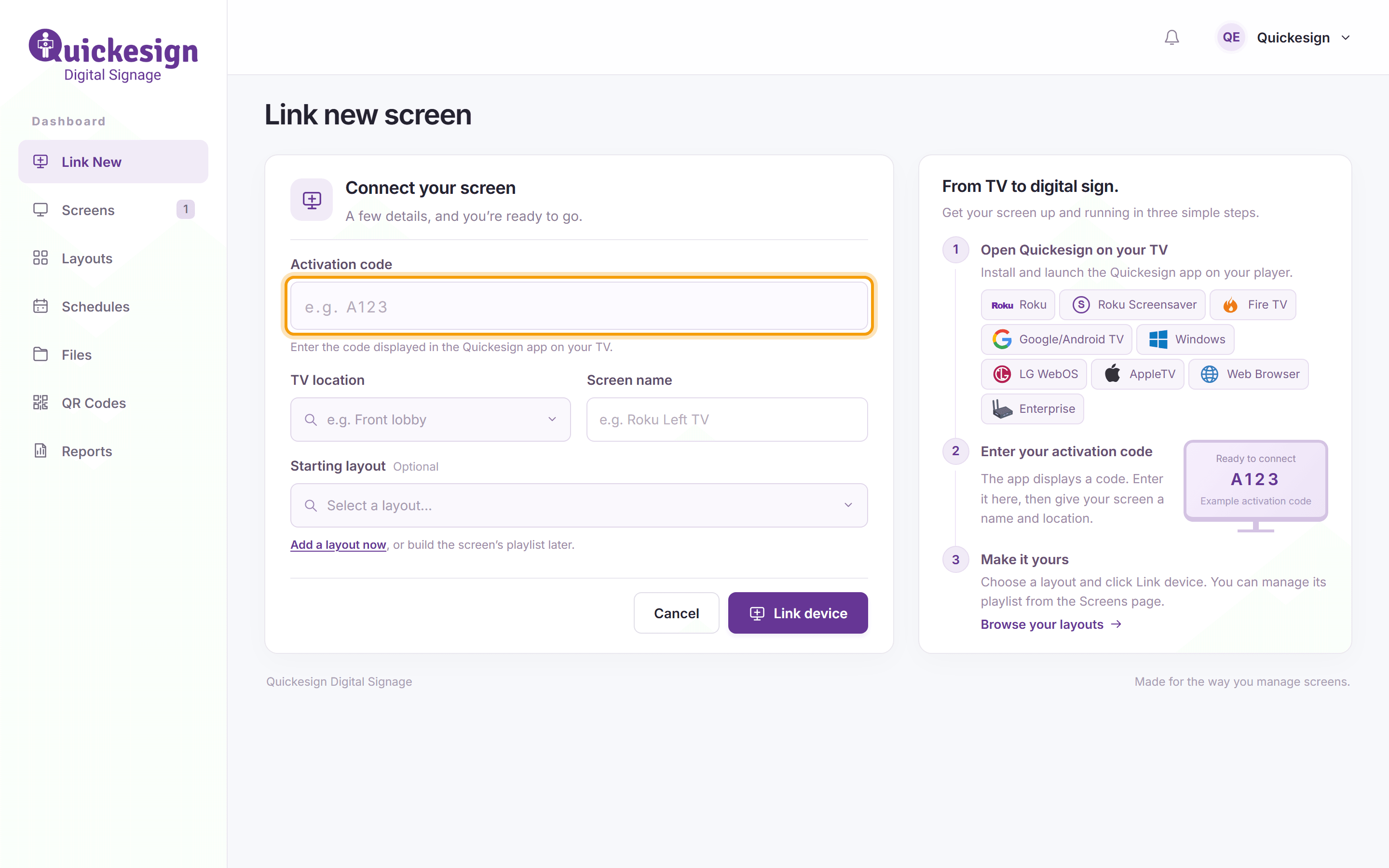
On your computer or phone, sign in at dashboard.quickesign.net and click Link New. Enter the Activation code, a TV location and a Screen name, choose a Starting layout if you have one, and click Link device.
-
While Quickesign is open, press the menu button on the remote for more options, including:
- open Quickesign when the TV starts;
- change the screen orientation (see Vertical/Portrait Screens);
- schedule a daily restart.

What’s next
Adding Layouts to the Screen’s Playlist: choose what the TV plays.