
Design QR codes for links, email, phone numbers, Wi-Fi, contact cards, events and more. Show them on your screens or download them for print. A smart QR code also counts its scans and lets you change where it goes later.
What you’ll need
- The Pro plan or higher.
Steps
-
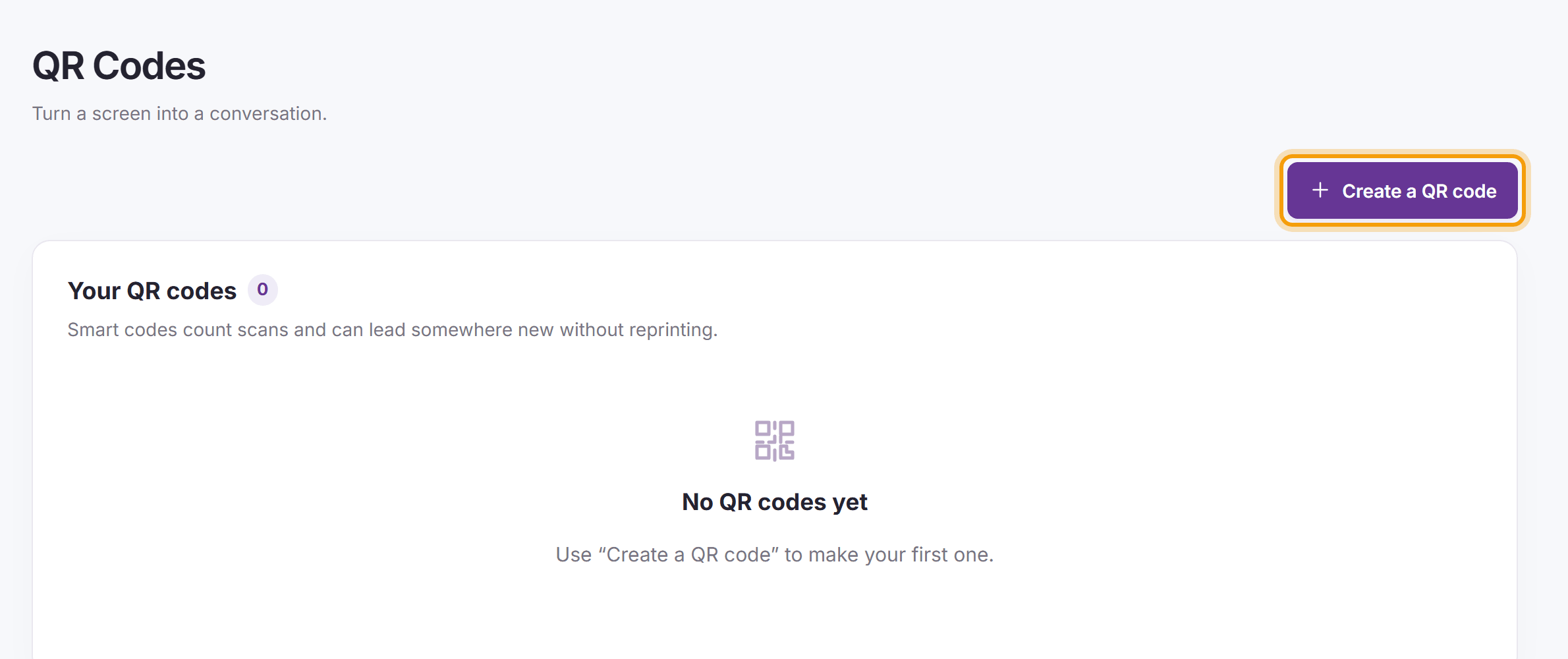
In the menu on the left, click QR Codes, then click Create a QR code.
-
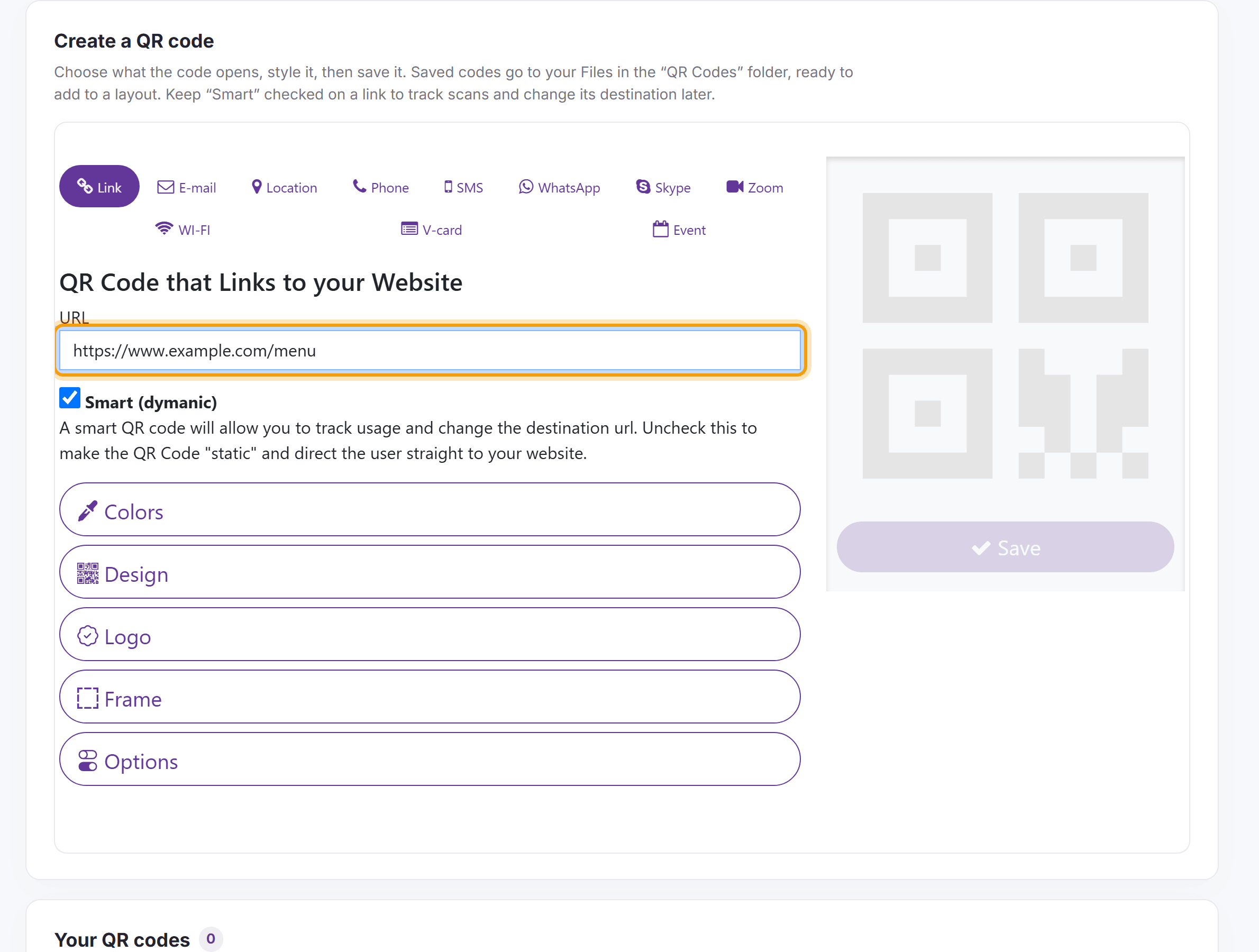
Choose what the code opens (Link, E-mail, Location, Phone, SMS, WhatsApp, Skype, Zoom, WI-FI, V-card or Event) and fill in its details. For a link, keep Smart checked to track scans and be able to change the web address later; uncheck it for a code that goes straight to the address. Style the code under Colors, Design, Logo, Frame and Options, then click Save.
-
Saved codes are listed under Your QR codes, where you can see their scans, and they are also saved as images in the QR Codes folder of your Files. To show a code on a screen, add it to a layout from your library like any other image.


What’s next
Creating a Simple Layout: add your QR code to a layout.