
Widgets add live content such as weather, news, social posts and calendars to your slideshows. Each widget becomes a slide that keeps itself up to date.
What you’ll need
- The Pro plan or higher for most widgets. The Canva widget is available from the Standard plan.
- A simple layout, or a slideshow zone in a multizone layout.
Steps
-
Open the layout (for a multizone layout, select the slideshow zone and click Details on the bar above it) and click the Widgets tab next to Library. Click a widget, fill in its window and click Add to playlist. The widget is added to the playlist like any other slide.
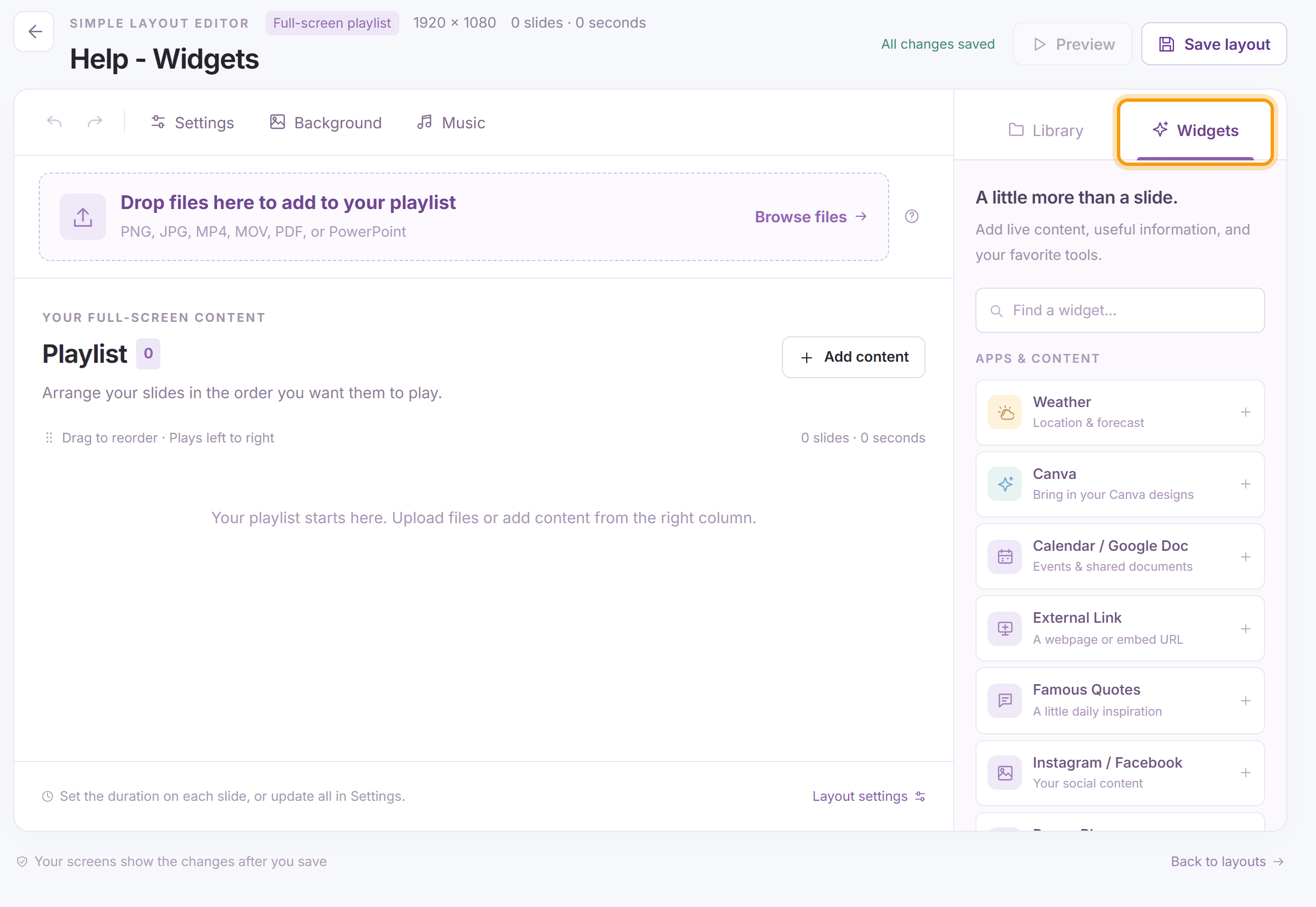

The widgets
- Weather: current conditions and the forecast for any location.
- Canva: designs made in Canva.
- Calendar / Google Doc: Google and Outlook calendars, and Google Docs, Sheets and Slides.
- External Link: an image or video stored on another website.
- Famous Quotes: a quote from the category you choose, or your own quotes.
- Instagram / Facebook: the latest posts from a public page.
- Power BI: a live Power BI report.
- QR Codes: a QR code you design on the QR Codes page.
- RSS: news and other feeds.
- USB Files: images and videos from a USB drive plugged into a Roku.
- Webpage Snapshot: a picture of a web page, updated every hour.
- YouTube: a YouTube video.
What’s next
Weather Widget: add a live forecast to your screen.