
Quickesign for Windows
Quickesign Digital Signage for Windows is the Windows application for a cloud-based digital signage platform that turns Windows computers into digital displays.
System Requirements:
- Operating System: Windows 10 or Windows 11
- Internet Connection: Required for initial setup and content updates
- Hardware: Quickesign is a lightweight application that runs on most modern Windows systems
- Display: Any monitor or display compatible with your Windows device
- Storage: Minimal disk space required for application and cached content
Recommended Setup:
- Stable internet connection for seamless content updates
- Dedicated device for uninterrupted digital signage display
Getting Started:
- Go to the Windows store at https://apps.microsoft.com/detail/9nhgcmthkx64 and download Quickesign Digital Signage.
- When you first start the application you will see instructions on how to link your device to Quickesign. A unique linking code will appear on screen. Go to https://quickesign.net to enter this code and connect your device. Once you have completed the process, then your device is ready.
- To customize the behavior of Quickesign, left-click anywhere on the screen and a list of settings will be opened. Each option is explained below.
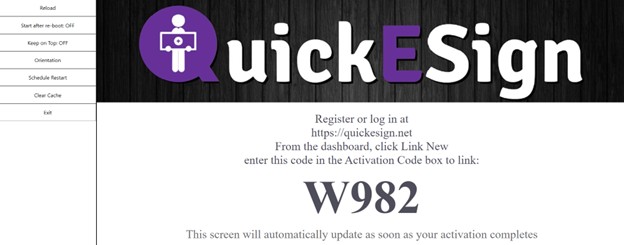
Key Features
Reload:
- Causes the application to reload all content. Use this when you've updated your content and want to see changes immediately.
- This allows you to refresh your content with no delay. Make any changes, and see them immediately after starting this refresh.
Start after re-boot
- Choose this setting if you always want your device to be running Quickesign Digital Signage. If this is enabled, then Quickesign Digital Signage will start whenever the device starts.
- With this, even if power is lost or the computer is manually restarted, your signage will be displayed. To disable this feature, simply click the button again. If your device requires a pin or password to login, then you will have to login before Quickesign Digital Signage can start.
- Alternatively, you can disable this requirement. Here is the windows documentation.
Keep on Top
- Protects from unexpected tampering with the screen. This will prevent anyone from minimizing Quickesign, or putting another app on top of it.
- This can be useful if the device is being used in a public place.
- To disable this feature, simply click the button again.
Orientation
- Quickesign Digital Signage for windows supports rotating in 90 degree increments to allow easily using the application in any common setup. Pressing the button rotates the screen 90 degrees.
- For a new layout, be sure to choose the orientation that matches the orientation that you'll be using.

For an existing layout you'll need to be sure that the type works for the rotation. The layout list's type column shows the type of your layout. In the screenshot below you can see an example of a vertical layout.

Schedule Restart
- Choose a time of day to automatically restart the application (typically during off-hours). This ensures the device gets all updates and clears memory.
- It can be helpful to have the application restart every day. This helps be sure the device gets all updates.
Clear Cache
- Clears out cached data. Warning: this removes the link to quickesign. You'll need to go to https://quickesign.net and link using the code shown on the screen after clearing the cache.
- Closes the app
Next Topic