
Add a colored rectangle to a multizone layout, most often as a background behind text. Rectangles can be any size, color and transparency.
What you’ll need
- A multizone layout open in the editor. See Multizone Layouts.
Steps
-
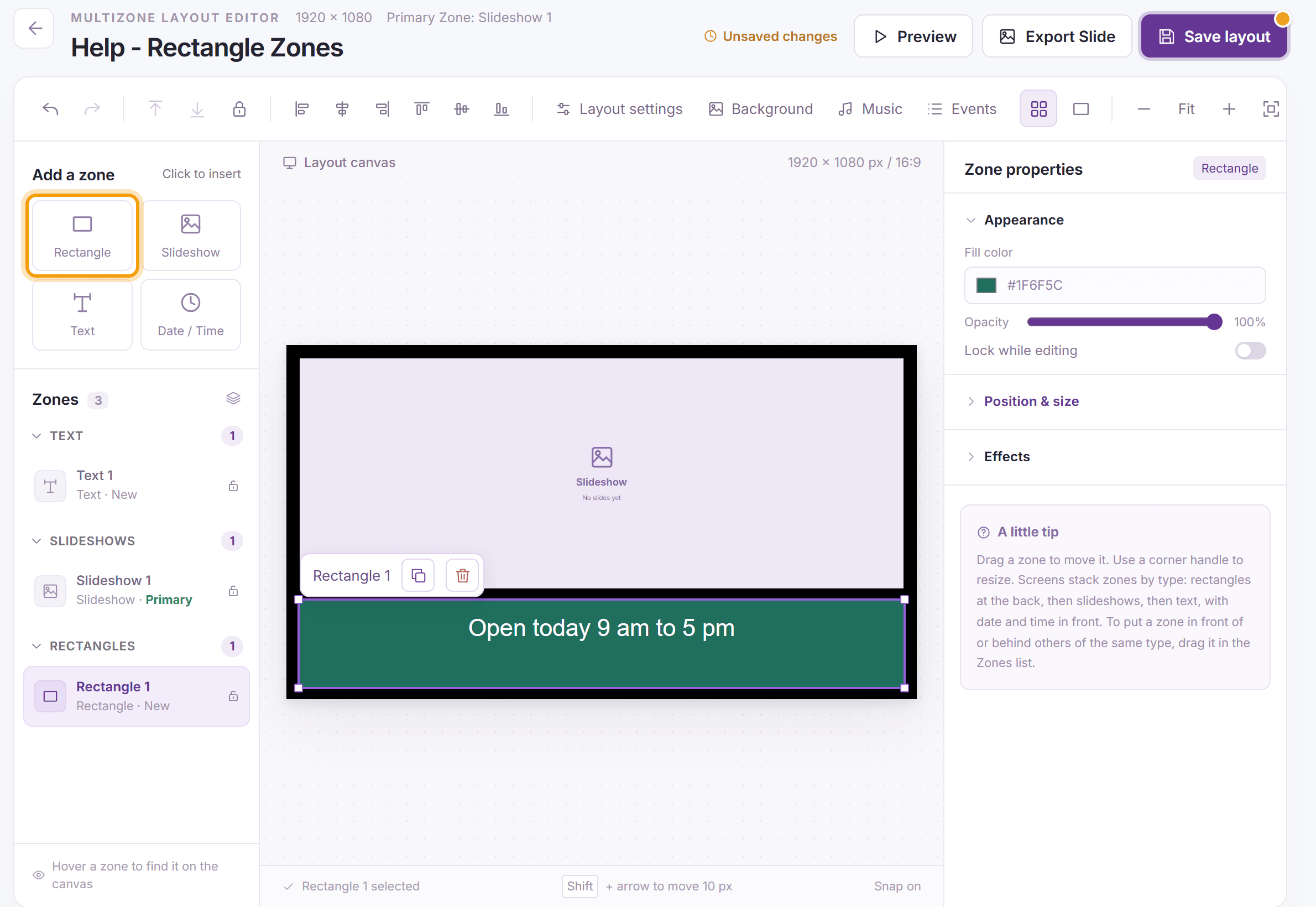
Under Add a zone, click Rectangle. Drag it into place and resize it. Rectangles always play behind slideshows, text and clocks, so you can place one under a text zone without hiding the text.
-
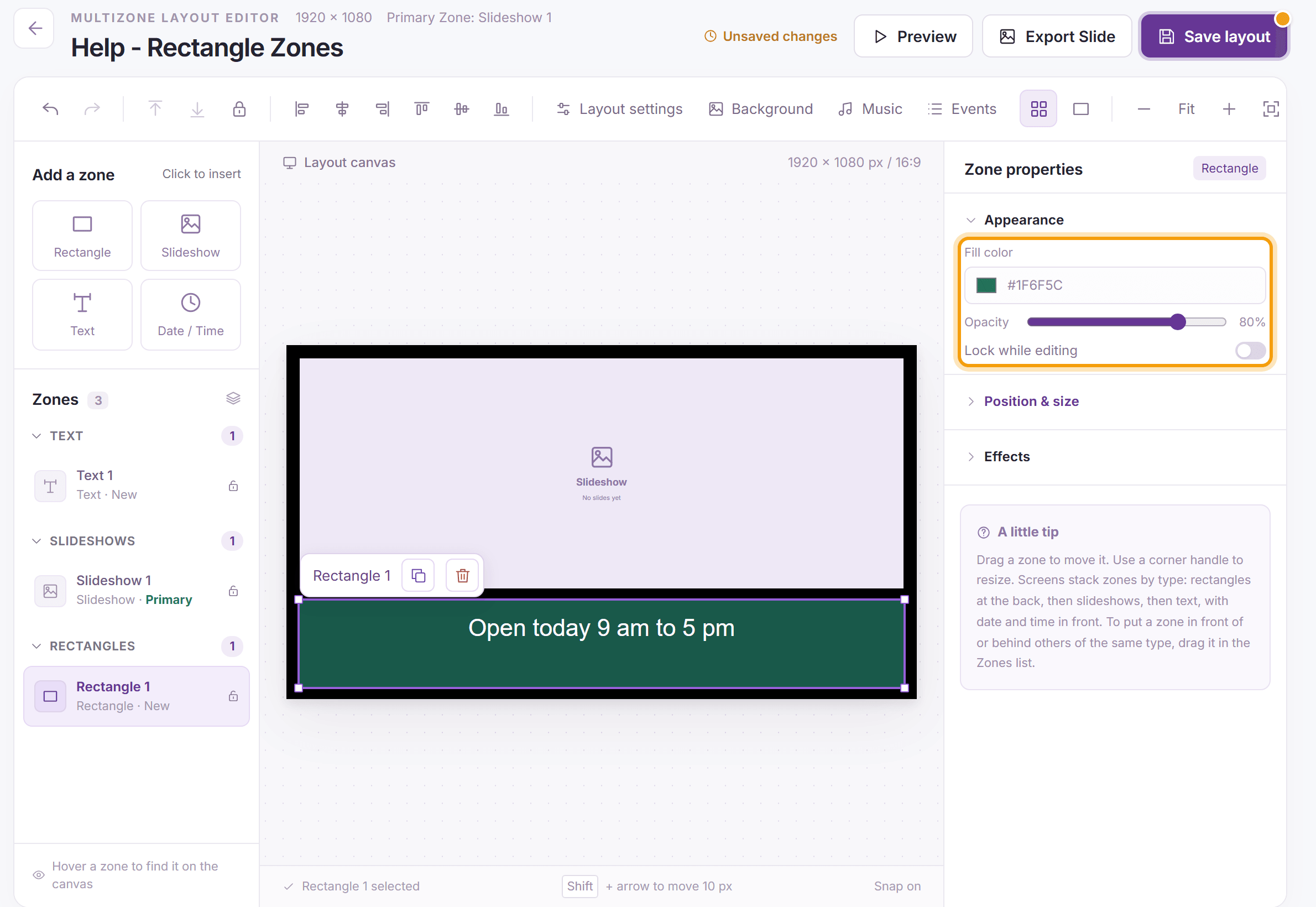
In Zone properties, click Appearance to open it. Choose the Fill color and set the Opacity; below 100% the content behind the rectangle shows through. Turn on Lock while editing so you don’t move the rectangle by accident while you work on the zones on top of it. Click Save layout.
-
For rounded corners, a border, a shadow or a gradient, open Effects and choose a Preset such as Card, Glass, Pill or Banner. See Zone Effects.


What’s next
Quick Caption: put a line of text right on an image slide.