
Show a text zone on a split-flap board, like an airport departures sign. Each paragraph flips onto the board in turn, only the tiles that change flip, and an optional sound plays as they turn. Split-Flap is a beta feature.
What you’ll need
- A multizone layout with a text zone. See Text Zones.
- A Roku with the Quickesign app version 10.4 or later. Other players show the zone as normal text.
Steps
-
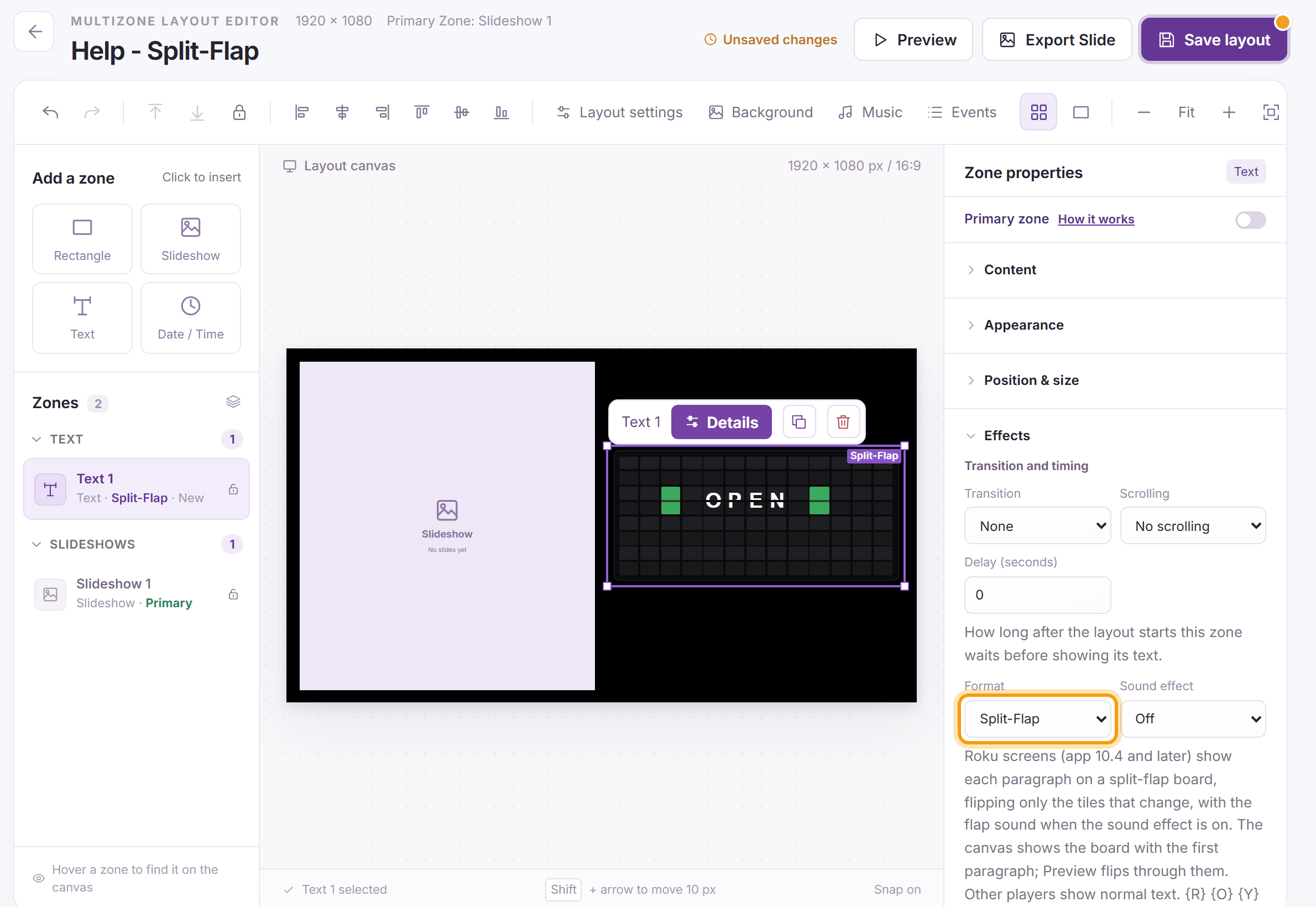
Select the text zone and click Effects in Zone properties to open it. Under Transition and timing, set Format to Split-Flap, then click OK on the beta notice. The canvas shows the board with the first paragraph, and the zone is marked Split-Flap on the canvas and in the Zones list.
-
Choose a Sound effect: Off (the default) or Flap clatter, played as the tiles turn.
-
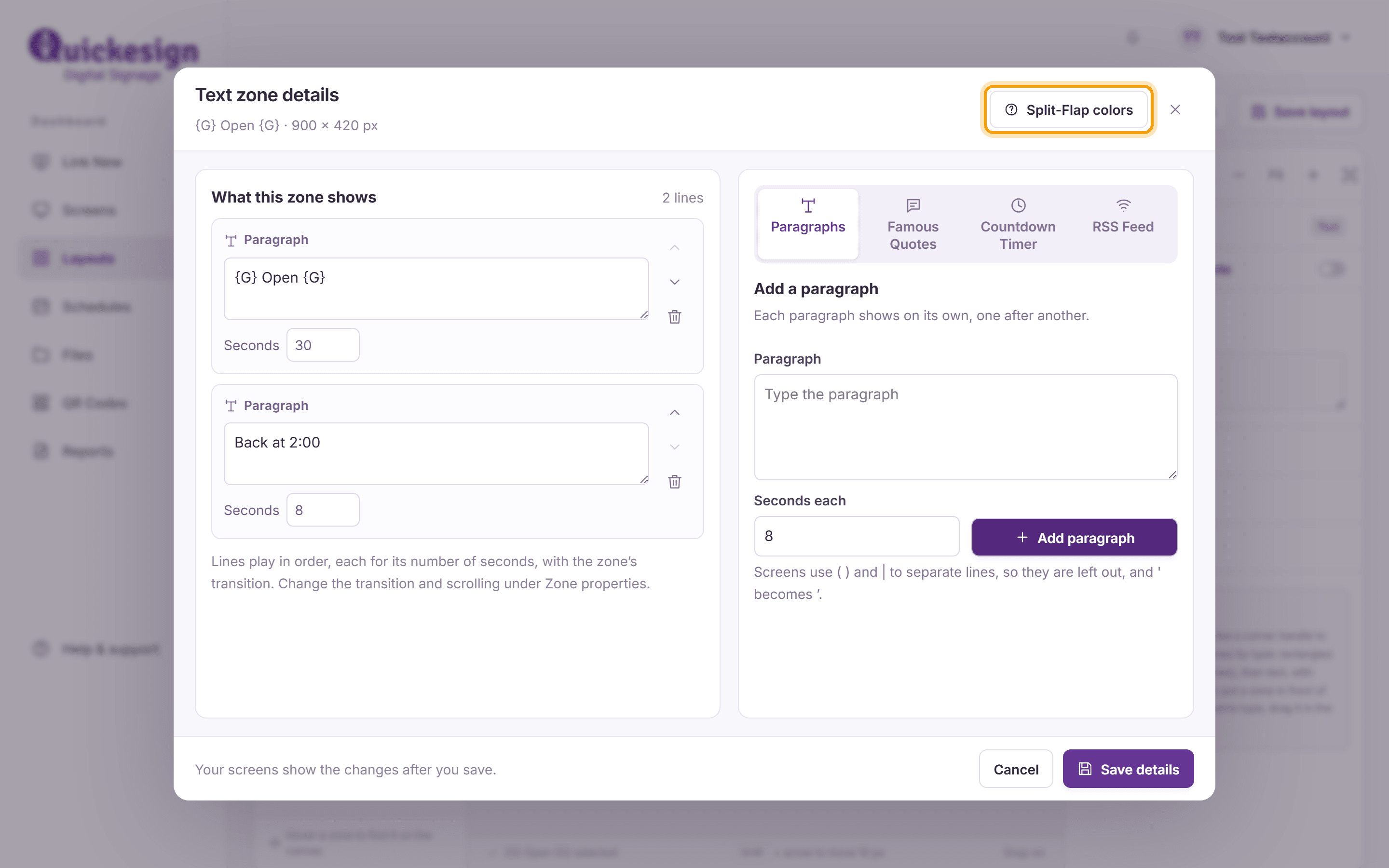
Add the messages the board should flip through as paragraphs: click Details on the bar above the zone, add each paragraph with its Seconds each, and click Save details. The tiles are as large as the zone allows while every paragraph fits, so shorter messages get bigger tiles. A new line in a paragraph starts a new row on the board.
-
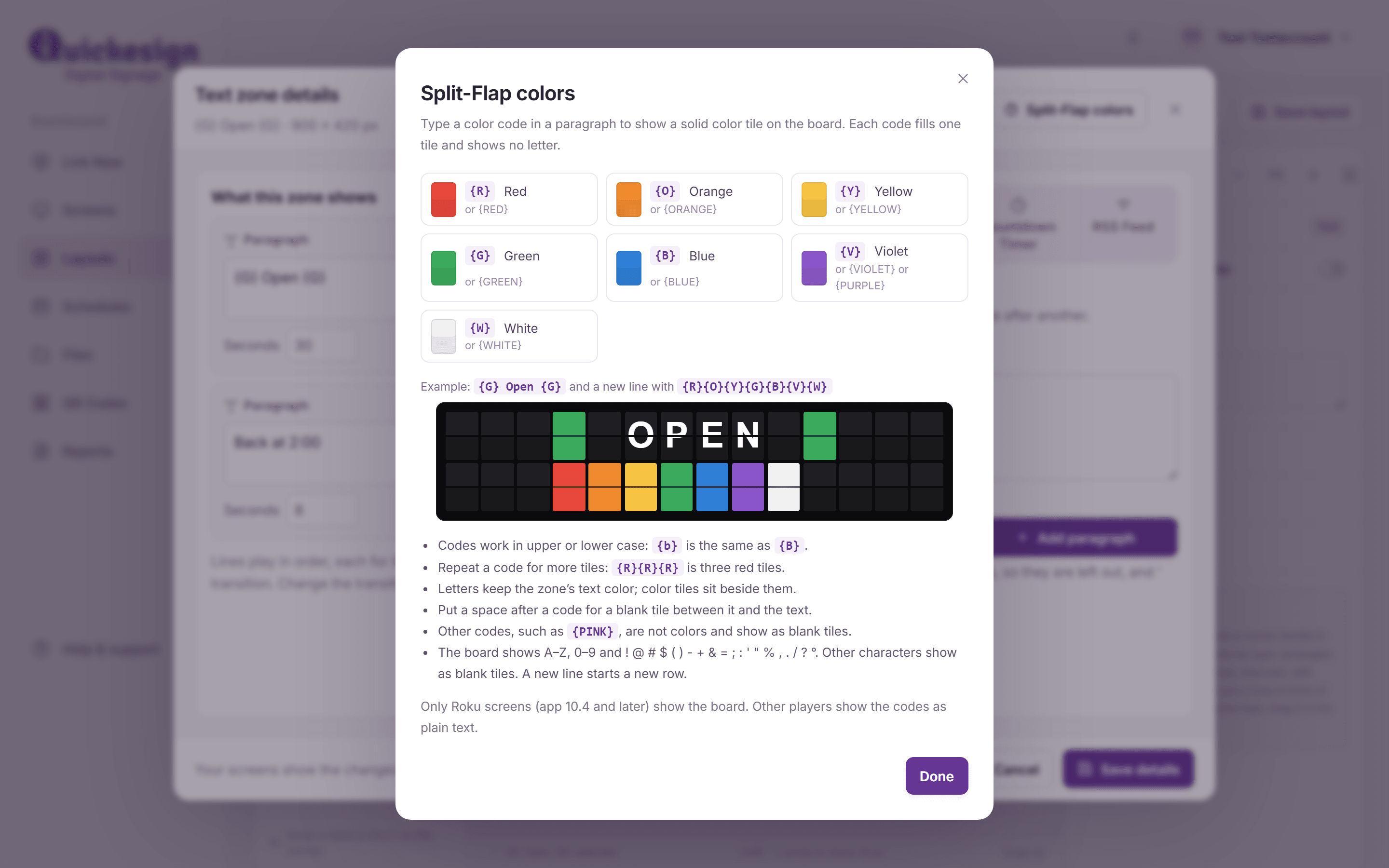
For a solid color tile, type a color code in the text: {R} red, {O} orange, {Y} yellow, {G} green, {B} blue, {V} violet and {W} white (or the names, such as {RED}; {PURPLE} also works). Each code fills one tile. For example, {G} Open {G} shows OPEN between two green tiles. Click Split-Flap colors in the Details window for the list and an example.
-
Click Save layout. Preview flips through the paragraphs the way a Roku screen does.


Good to know
- The board shows capital letters A–Z, the digits 0–9 and ! @ # $ ( ) - + & = ; : ' " % , . / ? °. Other characters show as blank tiles.
- Codes work in upper or lower case, {R}{R}{R} makes three red tiles, and a space after a code leaves a blank tile before the text. Letters keep the zone’s text color. Codes that aren’t colors, such as {PINK}, show as blank tiles.
- A board doesn’t scroll: choosing Split-Flap turns scrolling off, and choosing a scrolling speed changes the zone back to normal text.
- The board always sits at the top of the zone, and text effects don’t apply to it. Countdowns, and zones that start with an RSS feed or quotes, keep normal text on the canvas.
What’s next
Zone Effects: rounded corners, shadows and motion for your other zones.