
Give rectangle, text and slideshow zones rounded corners, borders, shadows, gradients, text panels and motion, so a layout looks finished without making artwork for it. Zone effects are a beta feature.
What you’ll need
- A multizone layout open in the editor with a rectangle, text or slideshow zone. See Multizone Layouts.
- To see effects on a screen, a Roku with the Quickesign app version 10.6 or later. On older Roku models (Roku OS 15) corners stay square and borders and gradients are left out; shadows, text effects, panels and motion still show. Other players may show the zone without its effects.
Steps
-
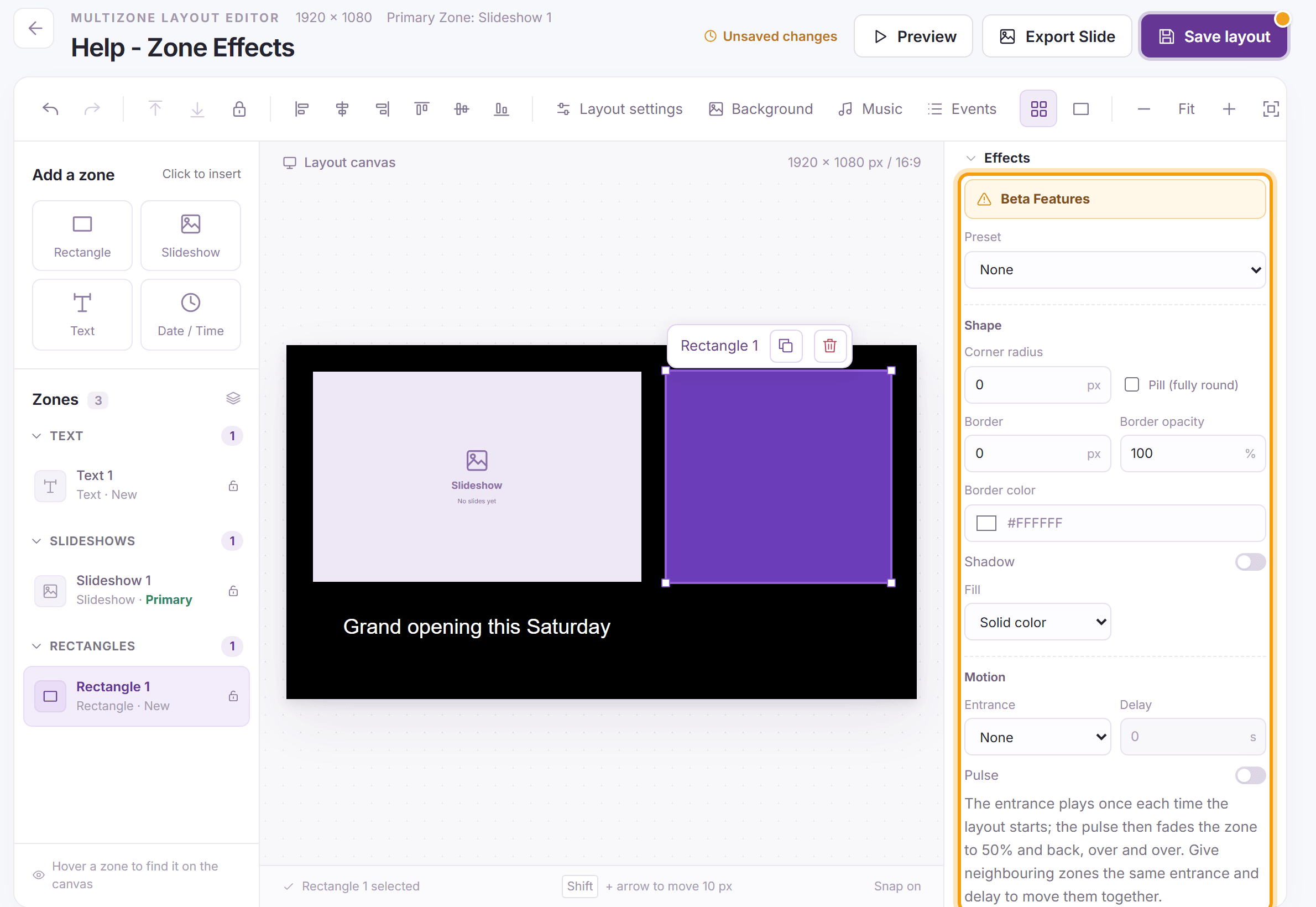
Select the zone, then click Effects at the bottom of Zone properties to open it. The editor remembers whether you left it open. The settings are under Beta Features.
-
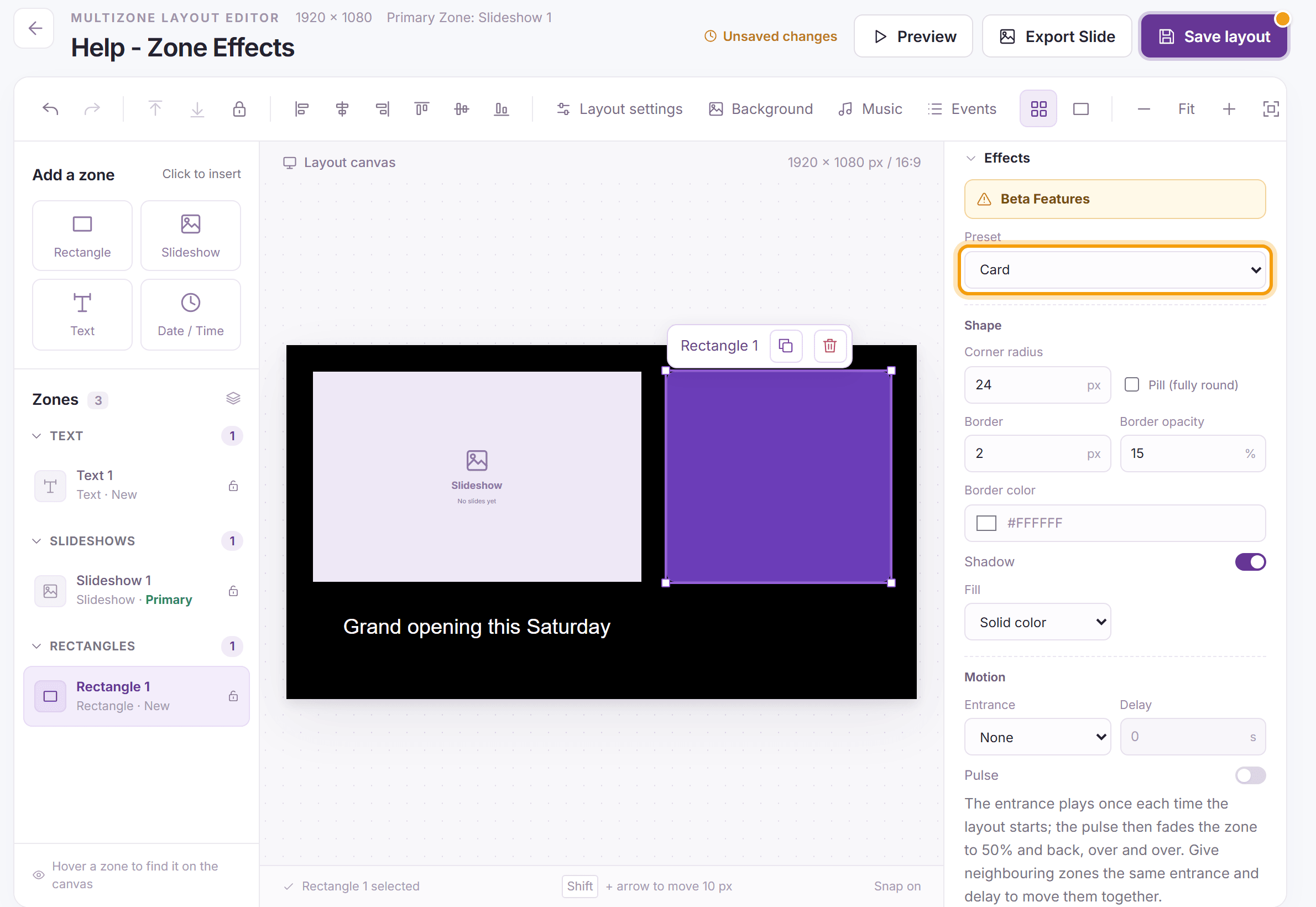
Choose a Preset for a quick start, then fine-tune any setting below it:
- Rectangles: Card, Glass, Pill or Banner (a gradient).
- Text: Pill, Tag or Glass, each a panel behind the text.
- Slideshows: Rounded, Framed or Circle.
-
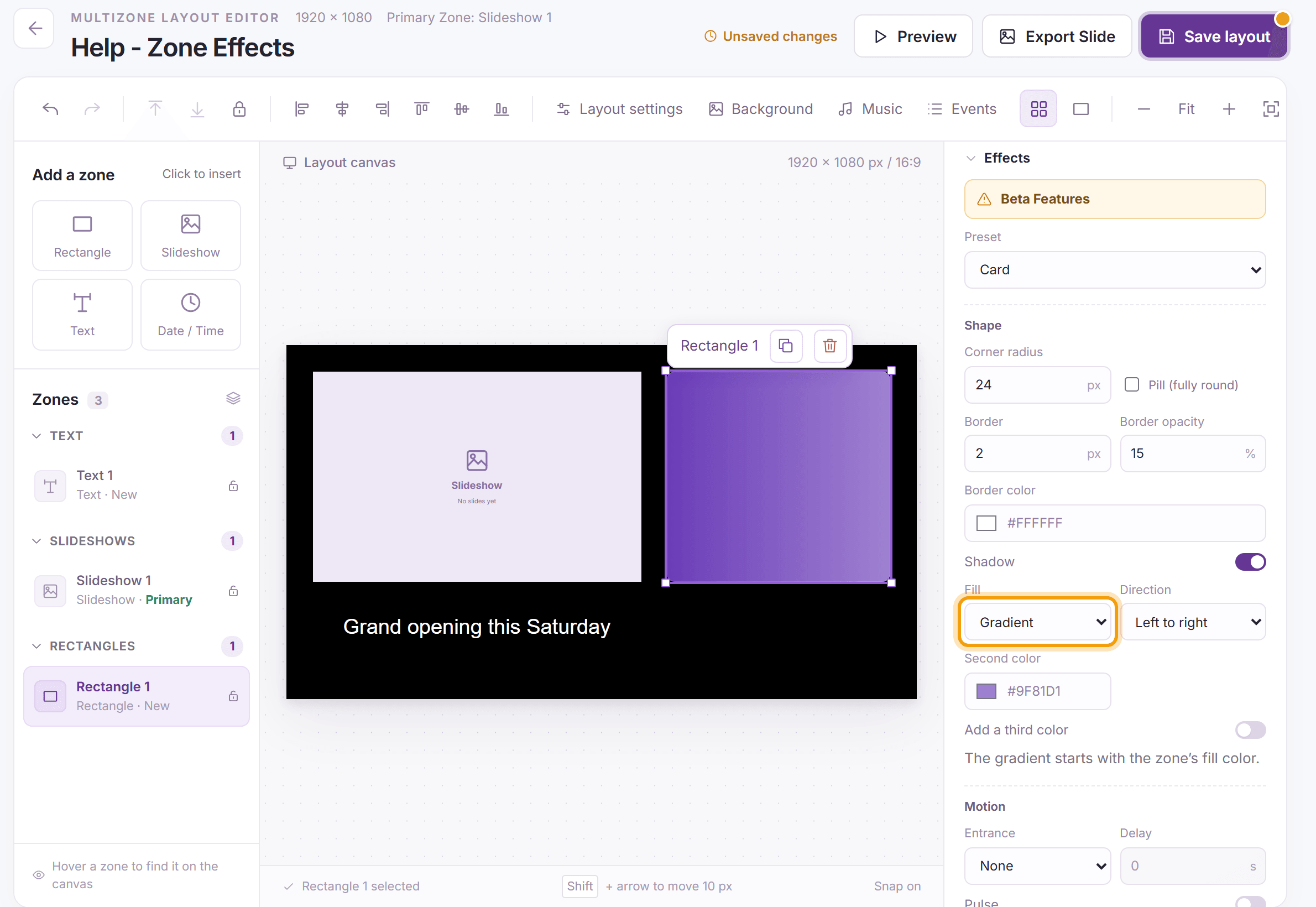
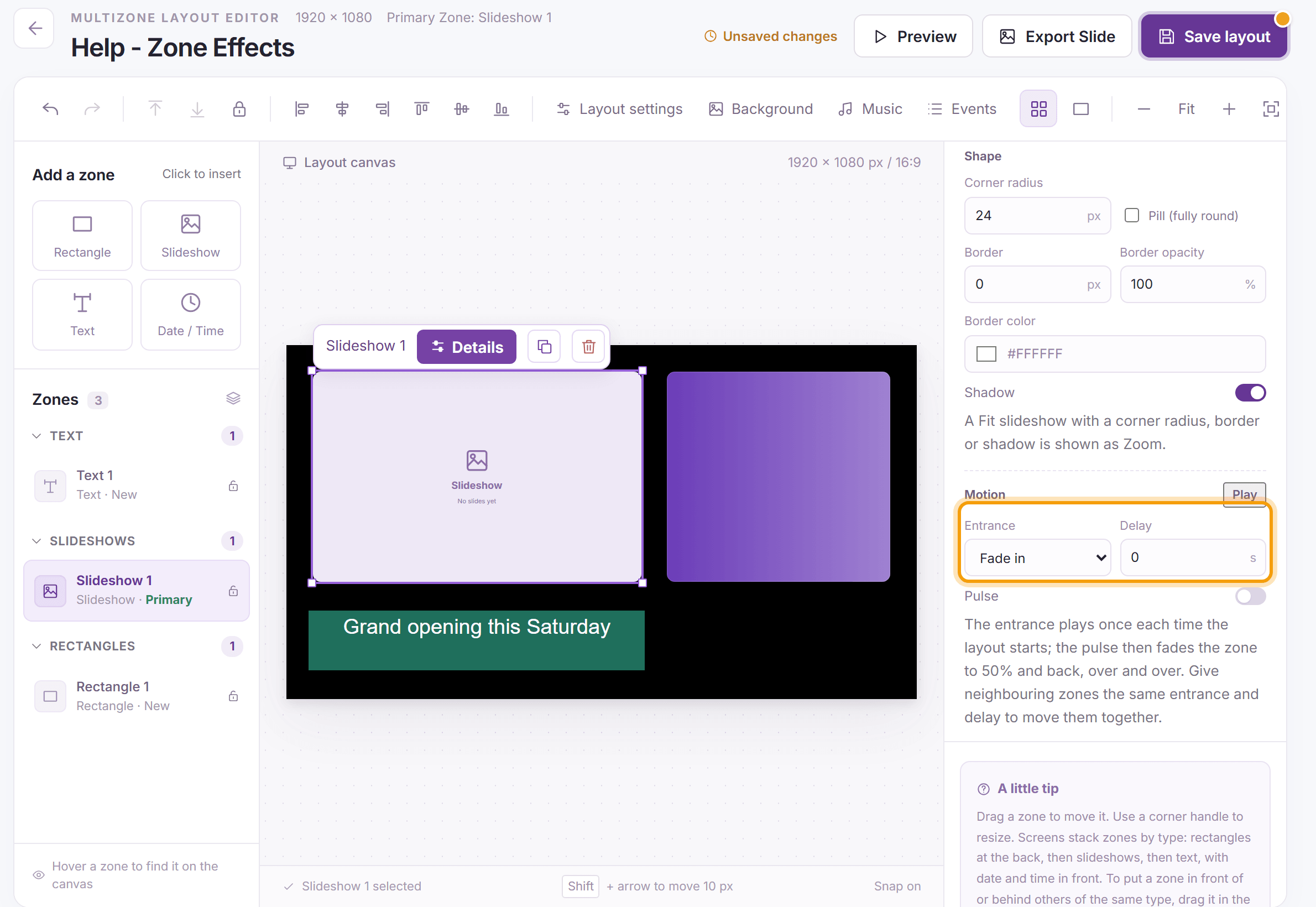
For a rectangle or slideshow, set the Shape: the Corner radius (or Pill (fully round)), a Border with its Border opacity and Border color, and a Shadow. A rectangle can also have a Gradient Fill: choose its Direction and Second color, and turn on Add a third color for one more. The gradient starts with the zone’s fill color. A slideshow set to fit its images with a corner radius, border or shadow shows them zoomed to fill the zone.
-
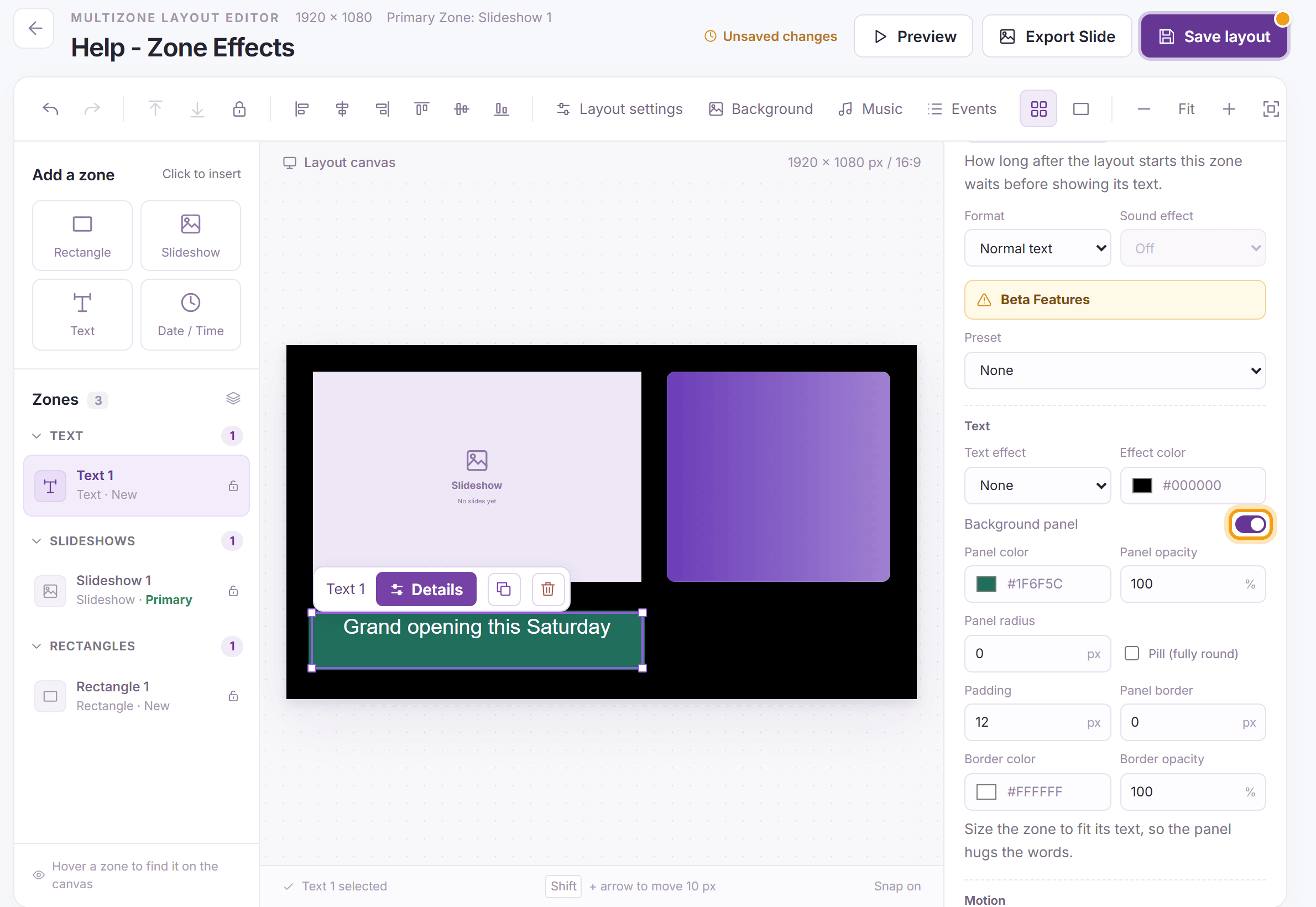
For a text zone, choose a Text effect (Shadow or Outline) and its Effect color, or turn on Background panel for a box behind the words with its own color, opacity, radius, padding and border. Size the zone to fit its text so the panel hugs the words. Text effects show only on plain text, not on scrolling or split-flap text.
-
Under Motion, choose an Entrance (Fade in, Rise from below, Drop from above, Slide in from the right or Slide in from the left) and its Delay, and turn on Pulse to fade the zone to half and back, over and over. The entrance plays once each time the layout starts. Give neighboring zones the same entrance and delay to move them together. Click Play beside Motion to see it again on the canvas.
-
Click Save layout, then Preview to see the effects and motion as your screen will play them.


Tip: Choosing a preset, or None, starts the look again: shape and text changes are cleared, and motion is kept. To remove every effect, set Preset to None, Entrance to None and turn off Pulse. Date / Time zones don’t take effects.
What’s next
Rectangle Zones: colored backgrounds behind your text.
Text Zones: messages, scrolling text and vertical alignment.