
Add a text zone to a multizone layout for messages, scrolling text, quotes, a countdown or an RSS feed.
What you’ll need
- A multizone layout open in the editor. See Multizone Layouts.
Steps
-
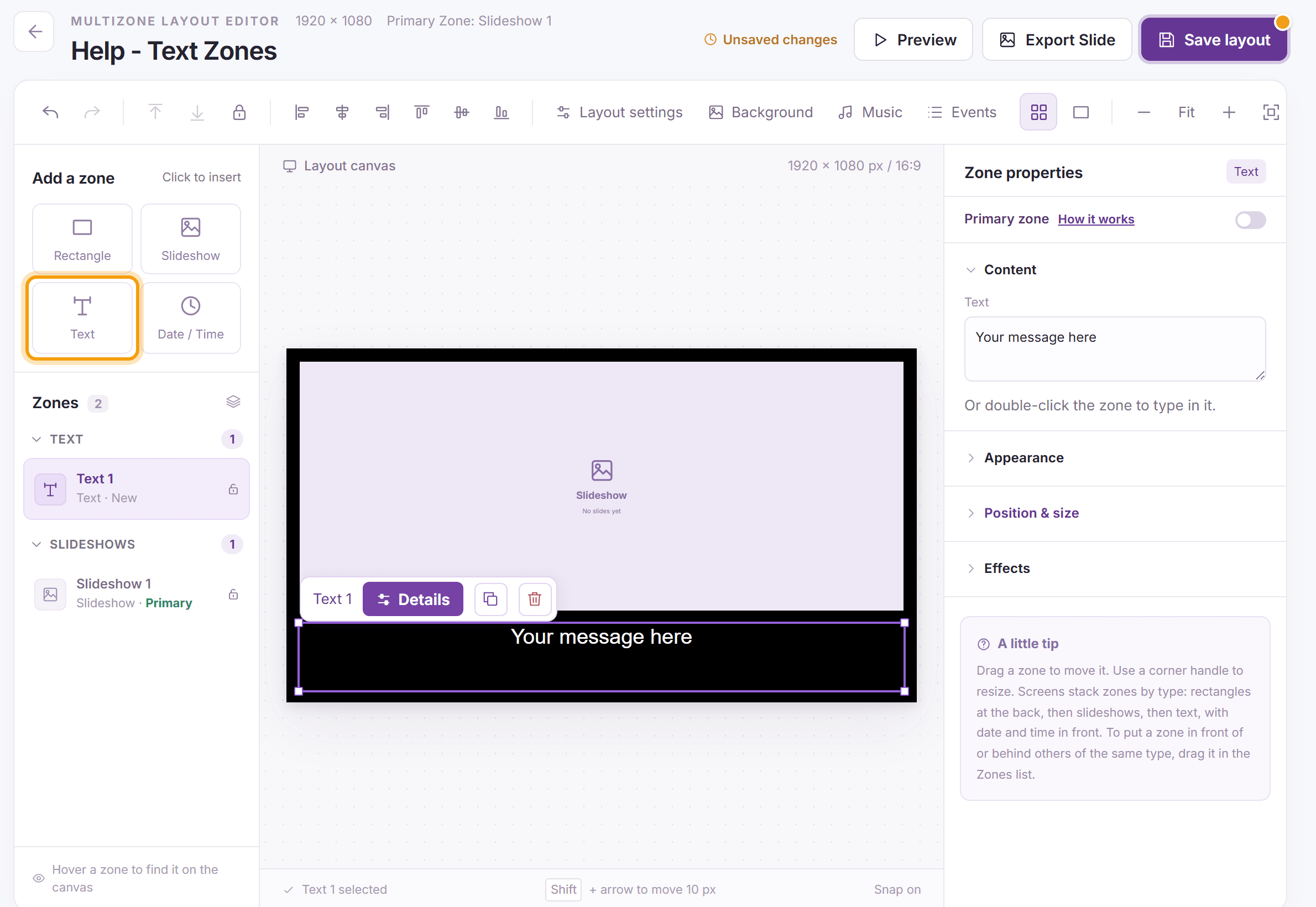
Under Add a zone, click Text. Drag the new zone into place and resize it. To put a colored band behind the text, add a rectangle under it (see Rectangle Zones).
-
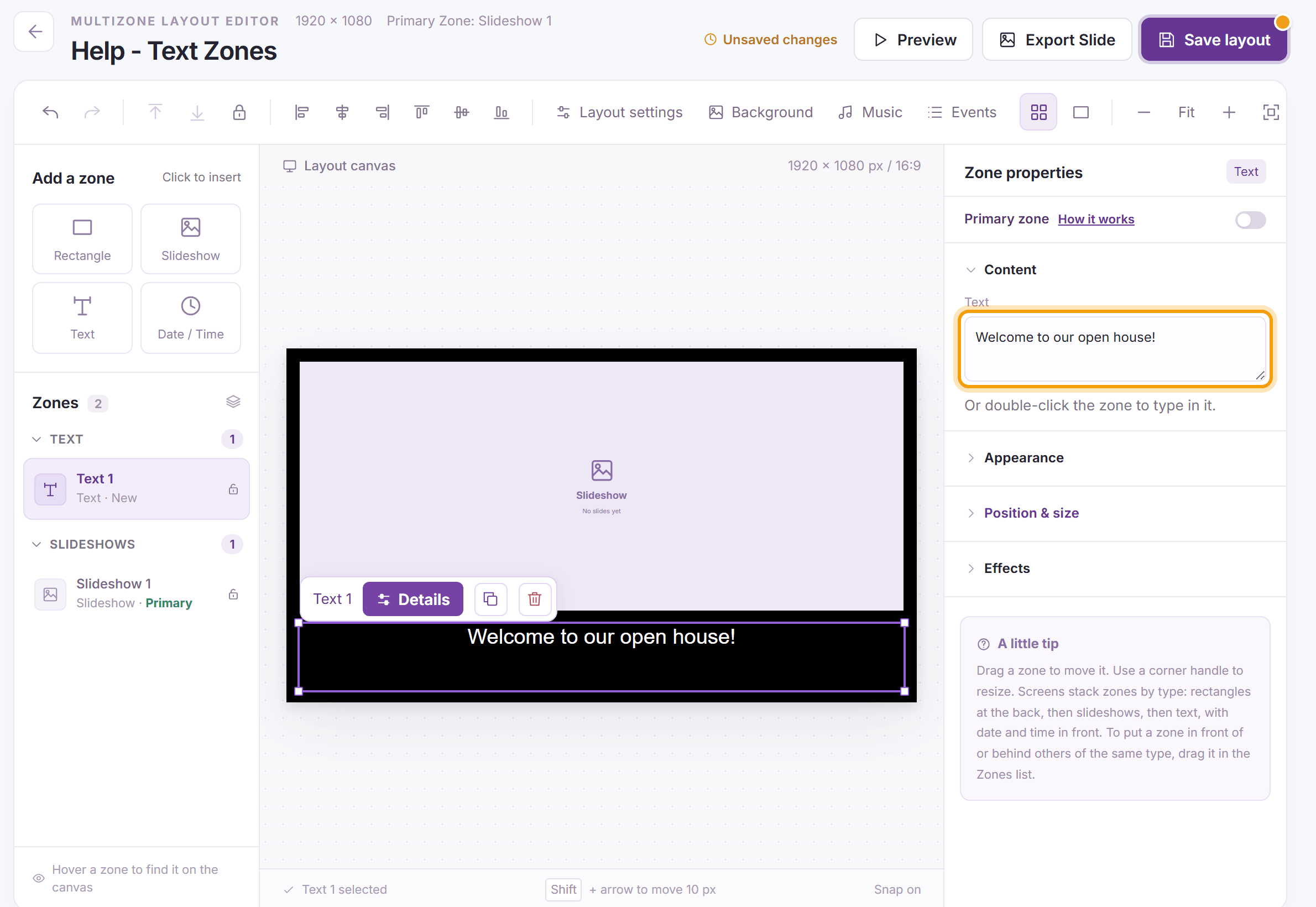
Type your message in the Text box under Content in Zone properties; the canvas shows it as you type. You can also double-click the zone and type right in it: click outside the zone or press Ctrl+Enter when you are done, or press Escape to put the text back. Line returns are kept as you type them, so pressing Enter before the first line moves the text down in the zone.
-
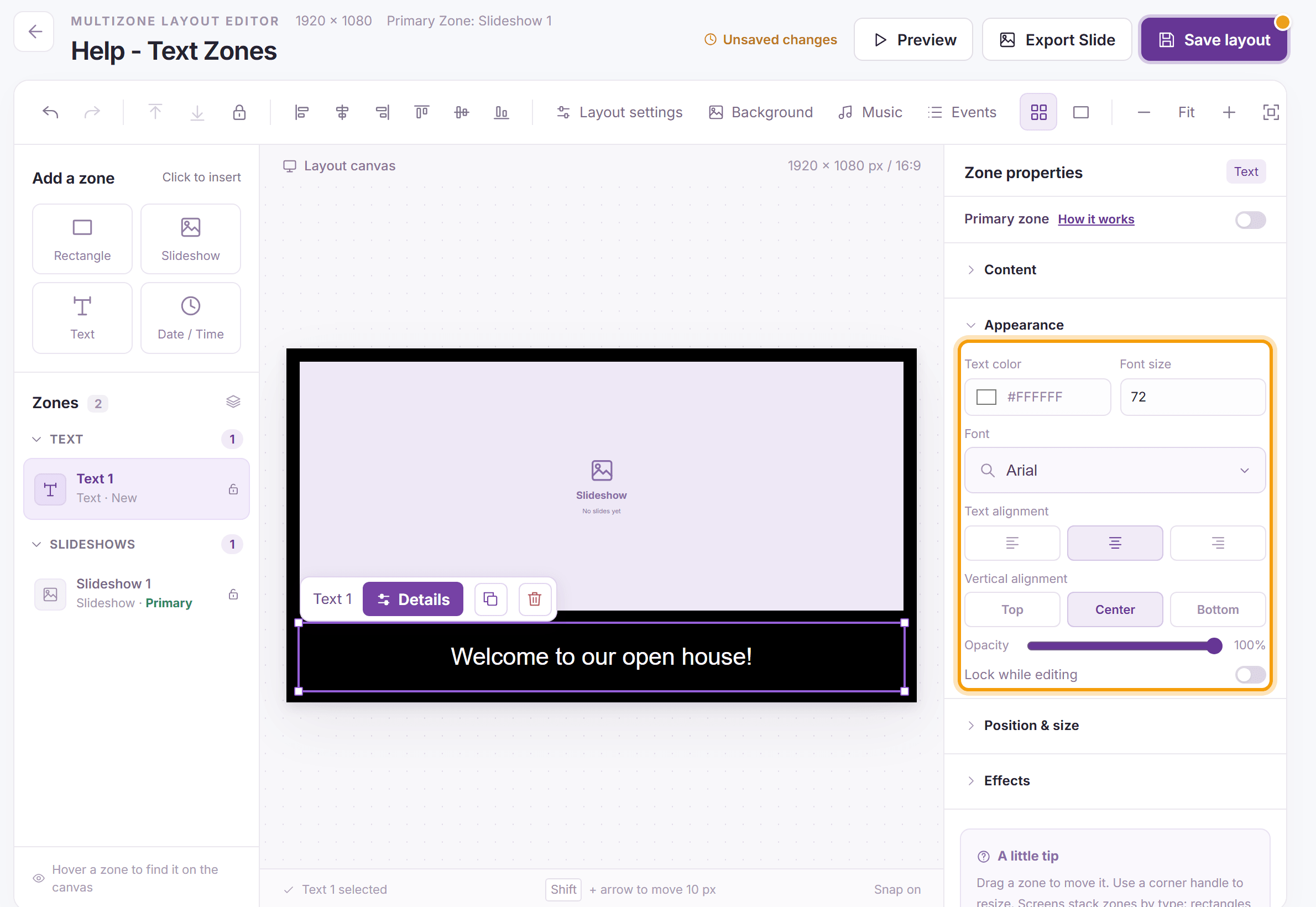
Click Appearance to open it. Set the Text color, Font size, Font and Text alignment, and the Vertical alignment: Top, Center or Bottom of the zone. Opacity makes the text see-through. If you selected several text zones, the changes apply to all of them.
-
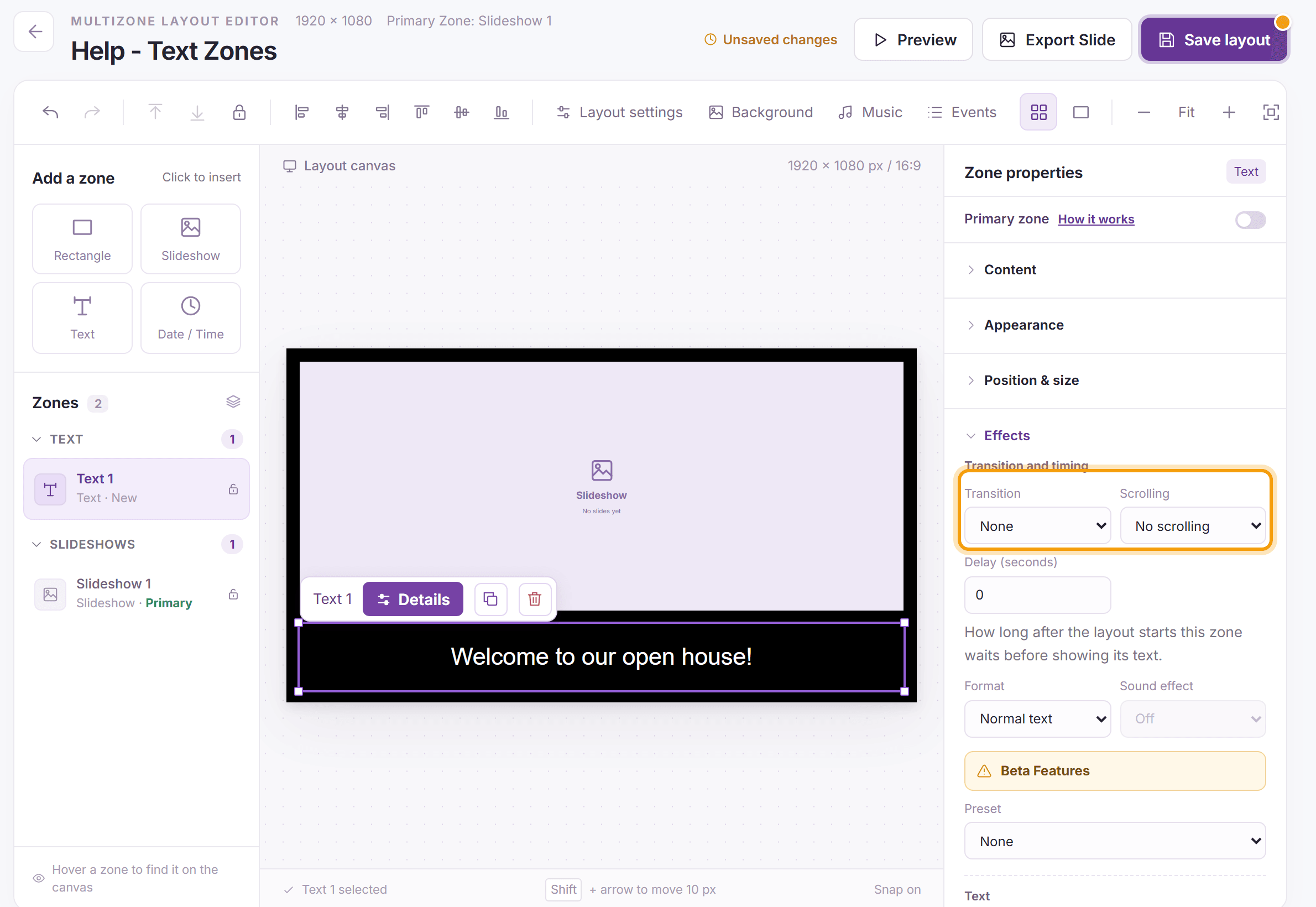
Click Effects to open it. Under Transition and timing:
- Transition: how the text changes when the zone has more than one paragraph.
- Scrolling: No scrolling, or a speed from Very slow to Fast for text that moves across the zone like a ticker. Scrolling text has no transition and always sits at the top of the zone.
- Delay (seconds): how long after the layout starts the zone waits before showing its text.
- Format: Normal text, or Split-Flap to show the text on a flipping airport-style board (see Split-Flap Text).
Below them, Beta Features add a shadow or outline, a background panel and motion to the text (see Zone Effects).
-
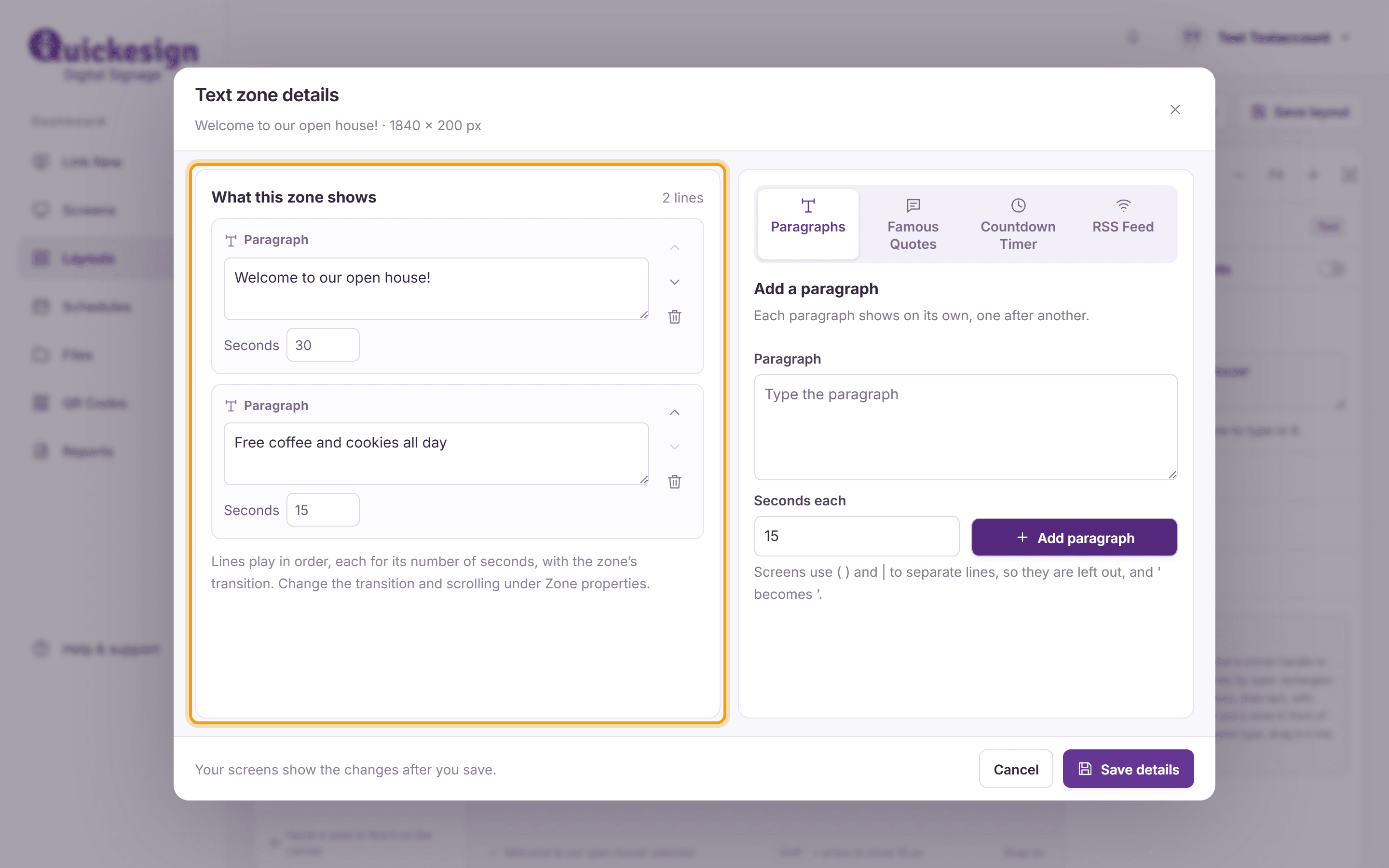
To show several messages in turn, click Details on the bar above the selected zone. Under Add a paragraph, type the text, set Seconds each and click Add paragraph. Paragraphs play in order under What this zone shows; use the arrows to reorder them and the trash button to delete one. The characters ( ) and | are left out on screens. Once a zone has several paragraphs, Content lists them, and double-clicking the zone opens Details.
-
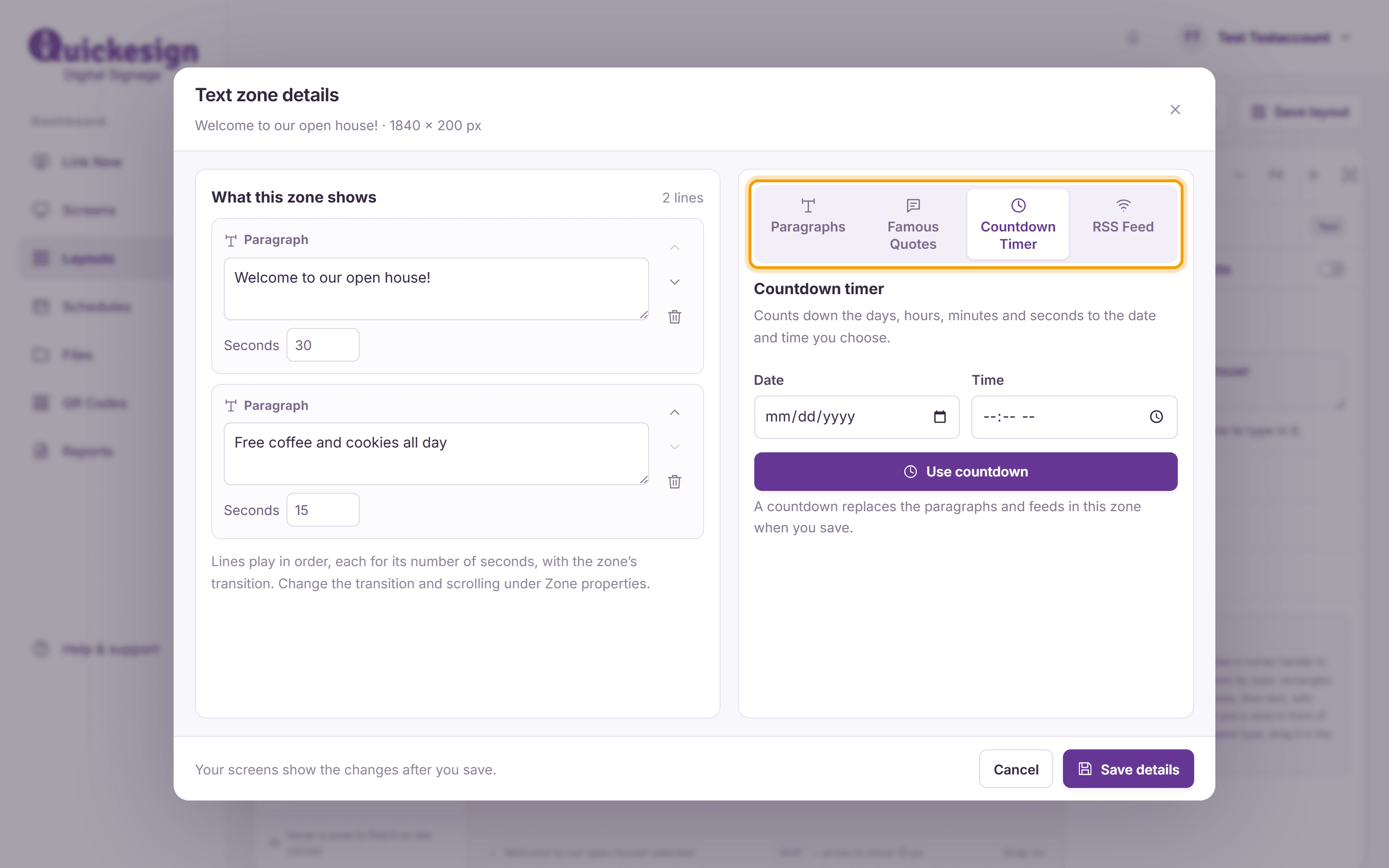
The tabs at the top of Details offer other content: Famous Quotes (see Famous Quotes), a Countdown Timer to a date and time, and an RSS Feed. A countdown replaces the paragraphs and feeds in the zone. Click Save details, then Save layout.


Tip: Roku screens show Center and Bottom alignment with the Quickesign app version 10.6 or later. Older apps and other players may show the text at the top of the zone.
What’s next
Split-Flap Text: show your message on a flipping board.
Date and Time Zones: add a clock or today’s date.