
Start a multizone layout from a ready-made design for your kind of business, then change its text, images and colors. It is the fastest way to a finished-looking screen.
What you’ll need
- The Standard plan or higher (templates are multizone layouts).
Steps
-
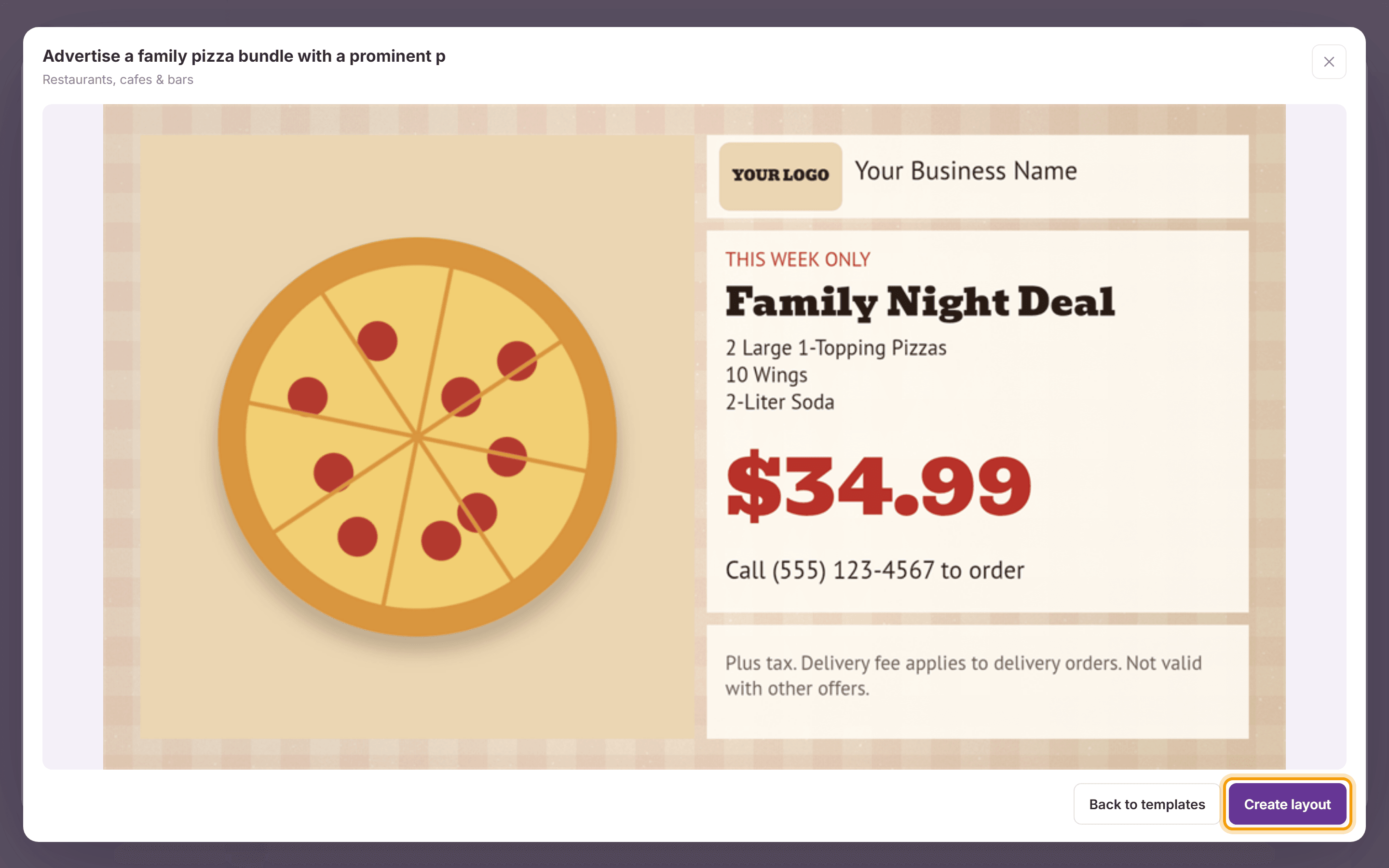
In Layouts, click New layout. Enter a Layout name and set Layout type to Multizone. Under Start from a template, browse the pages of designs, or type one or more words (such as menu, real estate or salon) in the search box and click Search; a template matches when every word is in its category, description or keywords. Click a template to see it large, then click Create layout, or Back to templates to keep looking.

-
The layout opens in the editor with all of the template’s zones. Click a zone on the canvas or in the Zones list to change it: type your own text, replace images in a slideshow’s Details, and change colors under Appearance in Zone properties. The layout keeps the template’s background. Click Save layout.


What’s next
Multizone Layouts: everything about zones in the editor.