
The primary zone decides when a multizone layout has finished playing, so the screen knows when to move on to the next layout in its playlist.
What you’ll need
- A multizone layout with at least one slideshow or text zone. See Multizone Layouts.
How it works
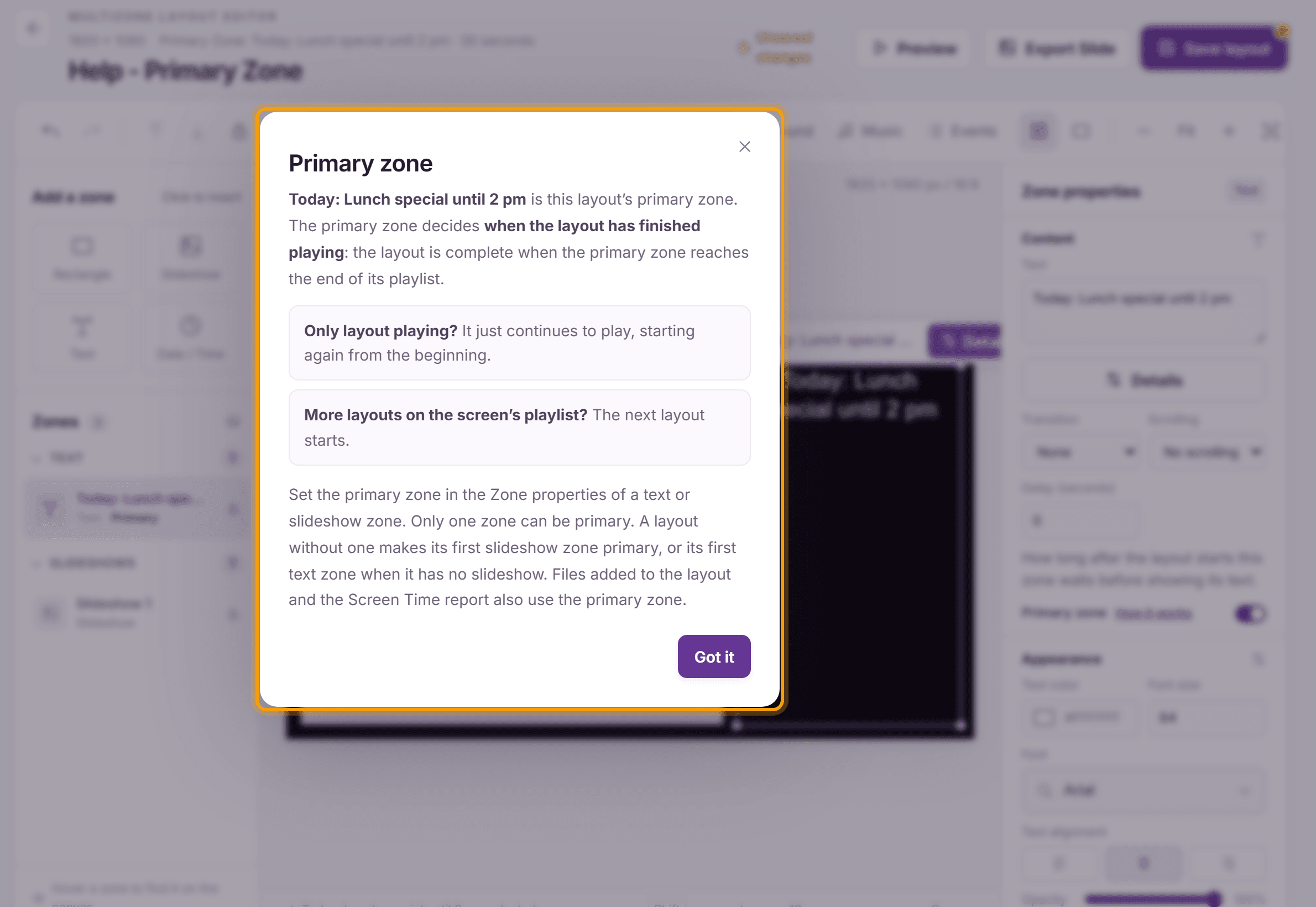
- The layout is complete when the primary zone reaches the end of its playlist. For example, a primary slideshow with 3 slides of 10 seconds each makes the layout play for 30 seconds.
- If the layout is the only one on the screen, it simply starts again from the beginning.
- If the screen’s playlist has more layouts, the next one starts.
- Only one zone can be primary, and it must be a slideshow or a text zone. A layout without one uses its first slideshow zone, or its first text zone if it has no slideshow.
- The Screen Time report also uses the primary zone.
Steps
-
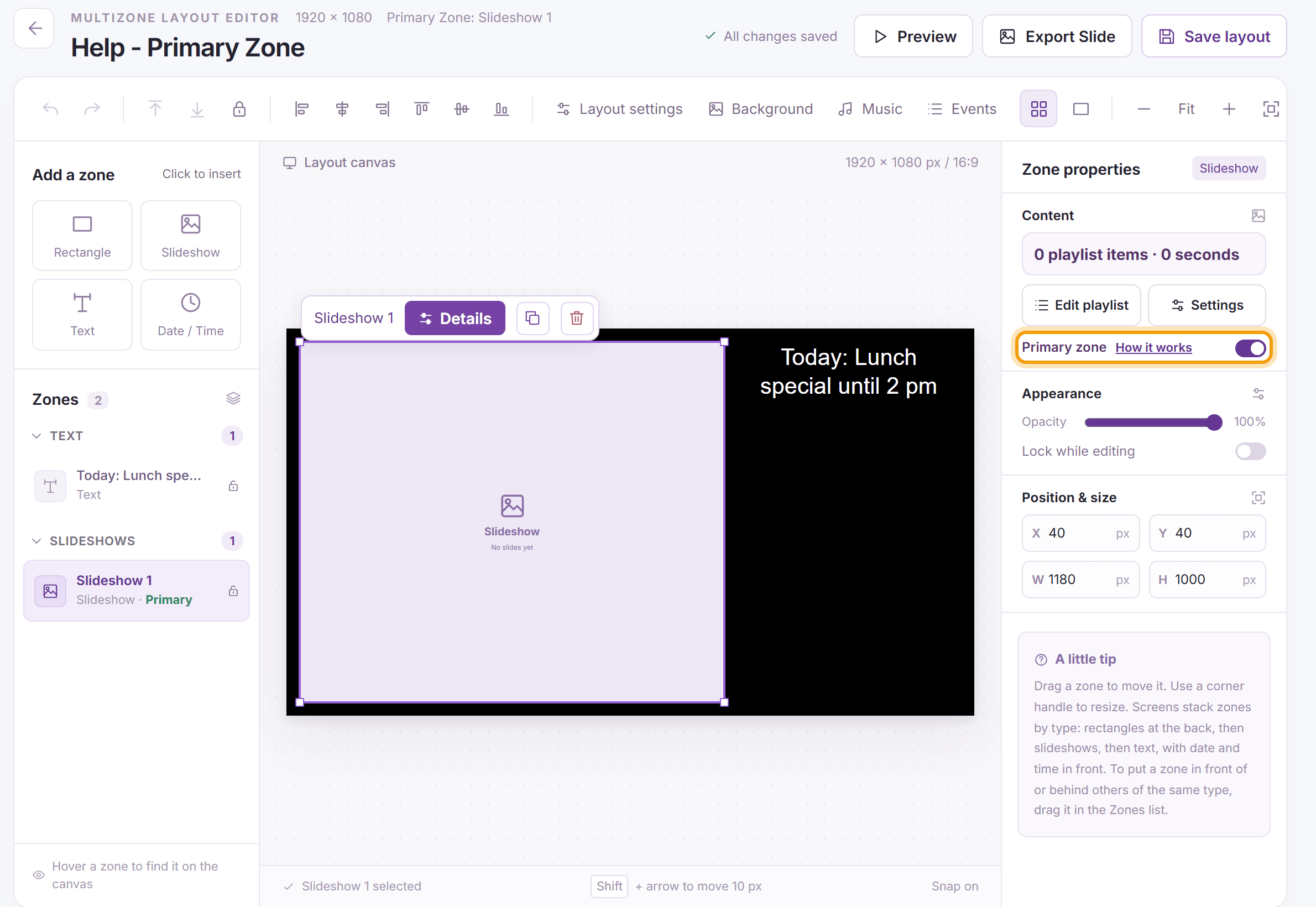
Open the layout in the editor and click a slideshow or text zone. Its Primary zone switch in Zone properties shows whether it is the primary zone. In the Zones list, the primary zone is marked Primary.
-
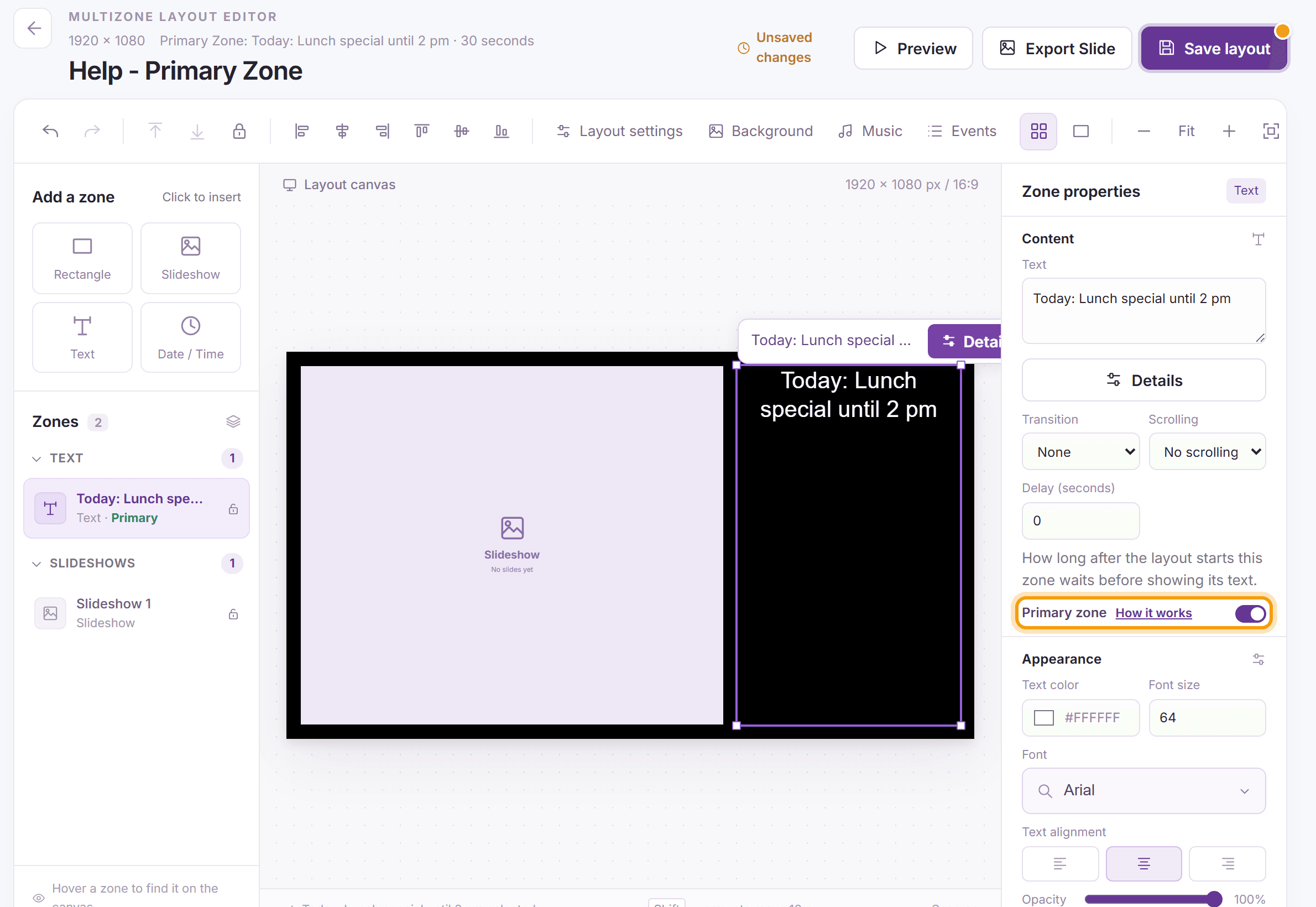
To make another zone primary, select it and turn on its Primary zone switch. The zone that was primary before is switched off.
-
Click How it works next to the switch for a short explanation, then Got it. Click Save layout to keep your change.


What’s next
Adding Layouts to the Screen’s Playlist: put several layouts on one screen.