
Send changes to a screen right away instead of waiting for its next update. Screens update on their own when the app starts, when a scheduled change happens, and on a regular check-in: every 60 minutes on Light, 30 on Standard, 15 on Pro and 10 on Enterprise. With Quick Check, a refresh usually reaches the screen in under 10 seconds.
What you’ll need
- The Standard plan or higher.
- A player that supports Quick Check.
Steps
-
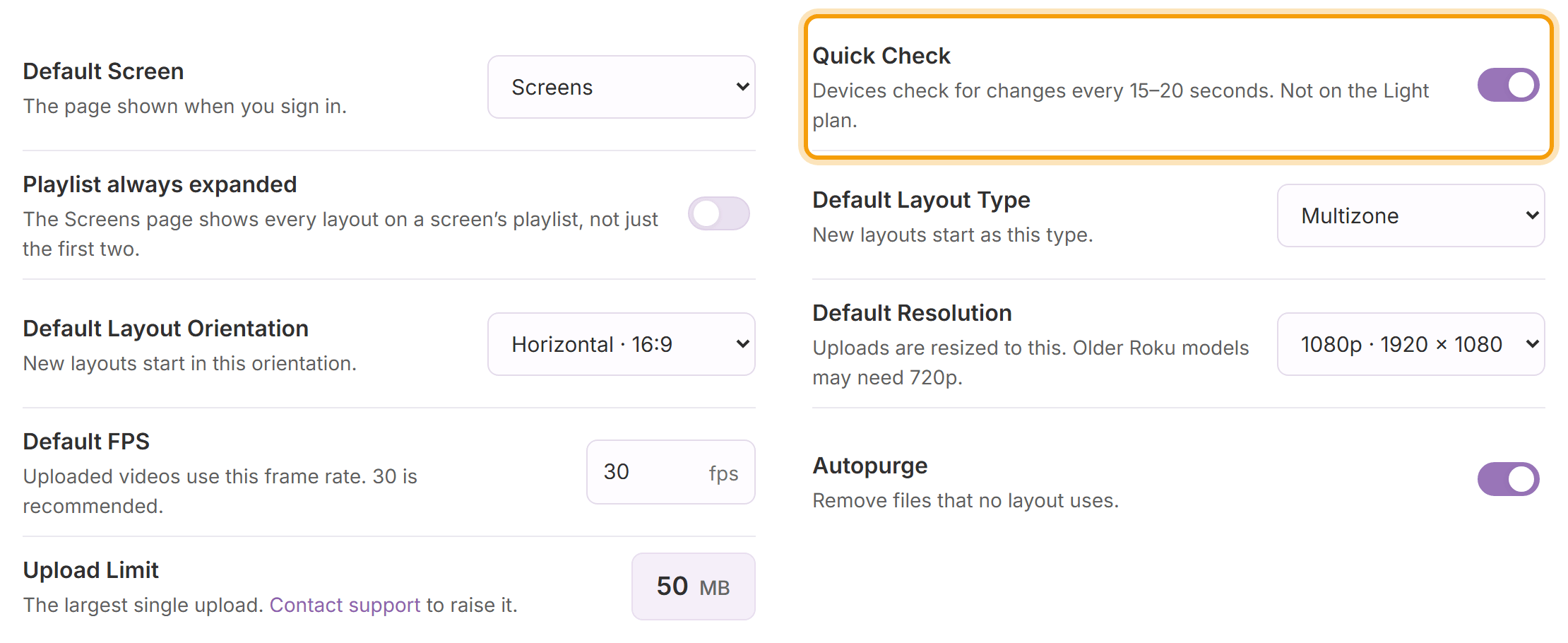
Turn Quick Check on: click your name in the top right, choose Settings, switch on Quick Check and click Save Changes (only the account owner can change it). Screens then check for changes every 15 to 20 seconds. It is off by default to save bandwidth.
-
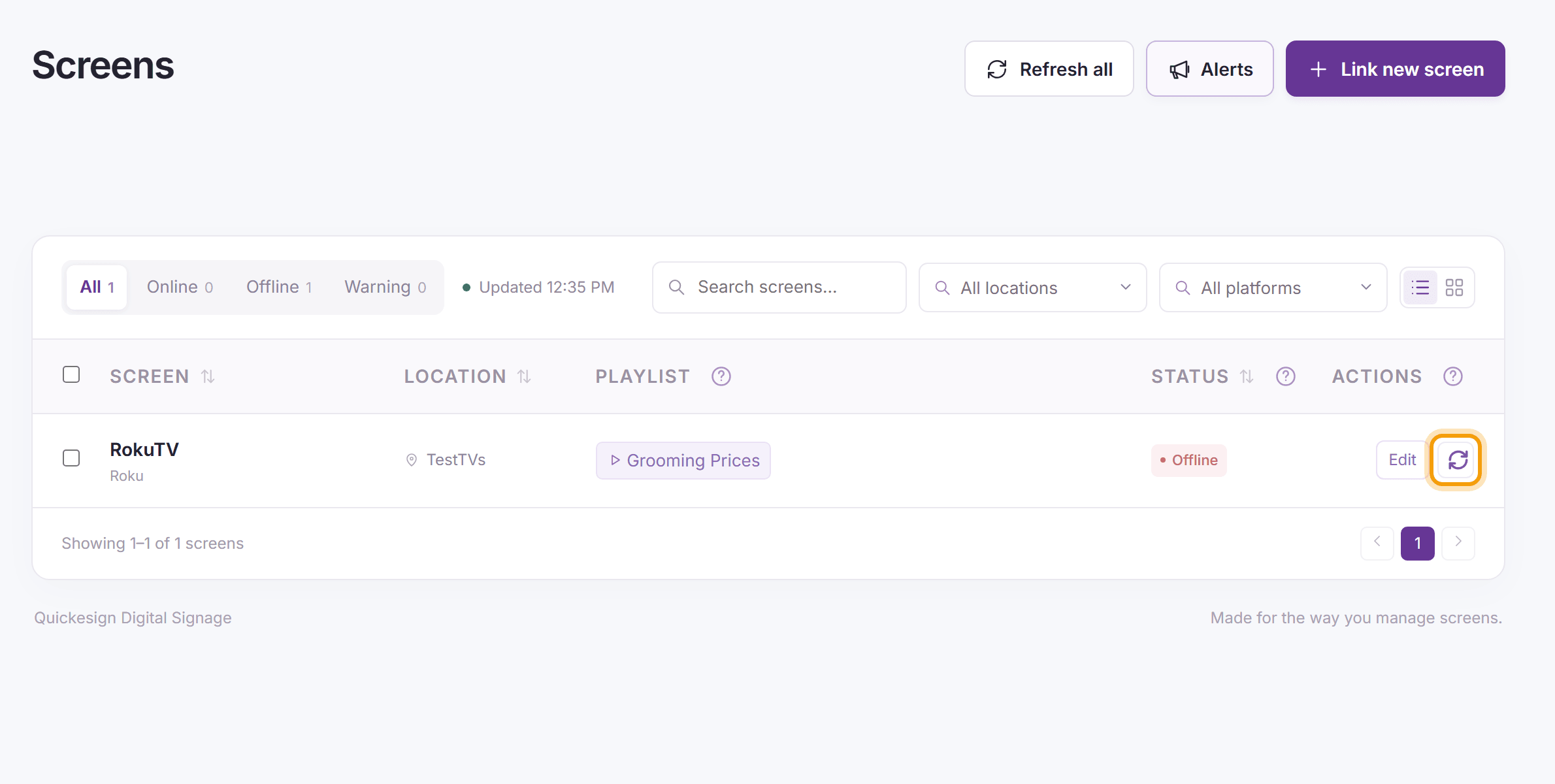
After you change a layout or playlist, go to Screens and click the refresh button at the end of the screen’s row, or Refresh all to refresh every screen.


What’s next
Screens: more about the Screens page.