
Connect a TV or player to your account with the activation code it shows when Quickesign opens. Linking works the same way on every player.
What you’ll need
- Quickesign installed and open on the player. See the setup guide for yours: Roku, Roku Screensaver, Fire TV, Google TV, Apple TV, LG webOS, LG commercial, Amazon Signage Stick or Windows.
- A computer or phone signed in at dashboard.quickesign.net.
Steps
-
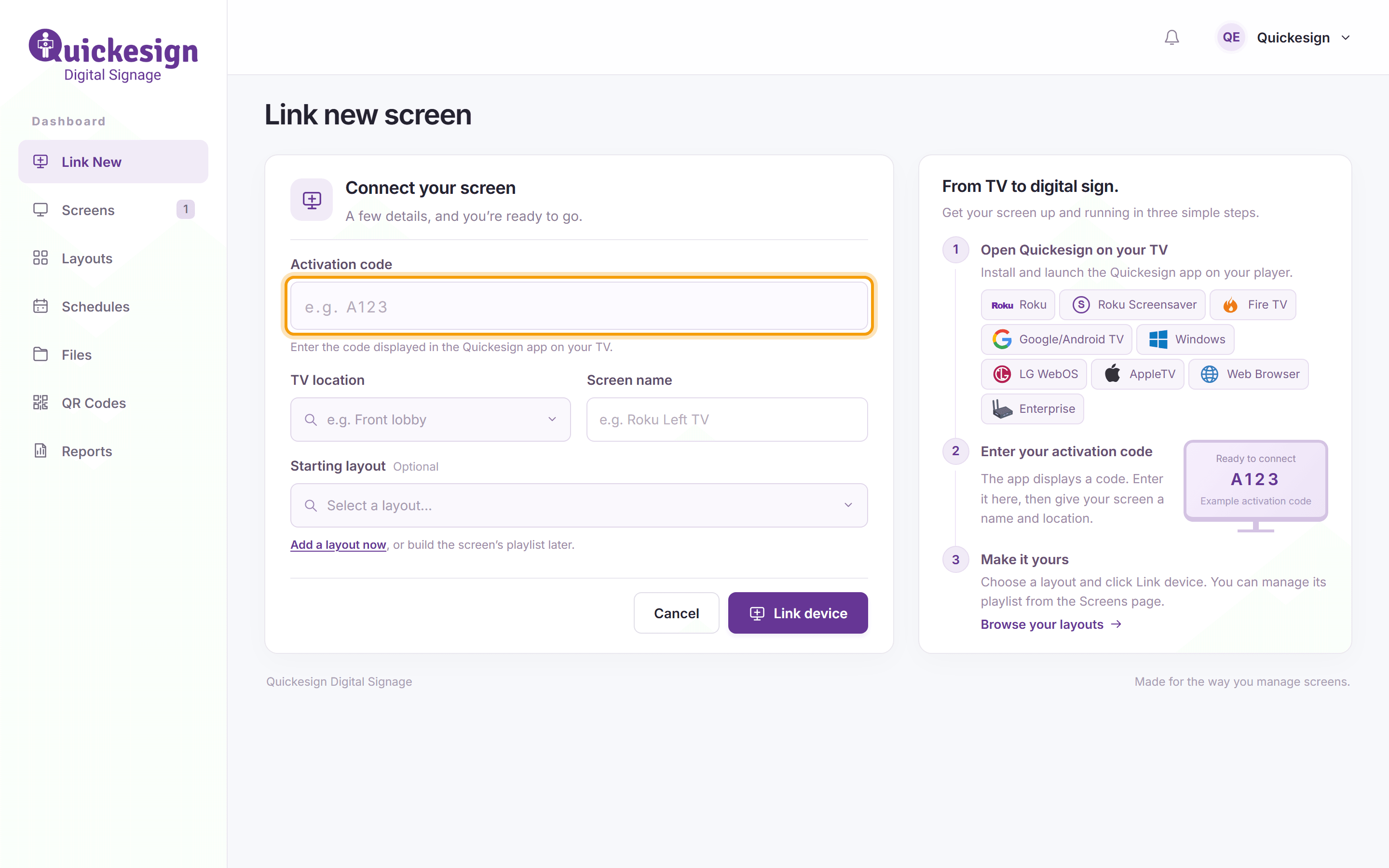
Open Quickesign on the player and note the activation code on the screen. In the dashboard, click Link New in the menu on the left (or Link new screen on the Screens page) and type the code in Activation code.
-
Enter a TV location (such as Front lobby; it groups and filters your screens) and a Screen name. Optionally choose a Starting layout; Add a layout now creates one if you don’t have any yet. Click Link device. The screen starts showing your content within moments.


Tip: Each linked player counts as one screen on your plan. To replace a player, link the new one, then remove the old screen (see Deleting a Screen).
What’s next
Adding Layouts to the Screen’s Playlist: choose what the new screen plays.