
Remove a screen you no longer use from your account. This does not delete any layouts or files.
What you’ll need
- Permission to delete screens (the account owner always has it).
Steps
-
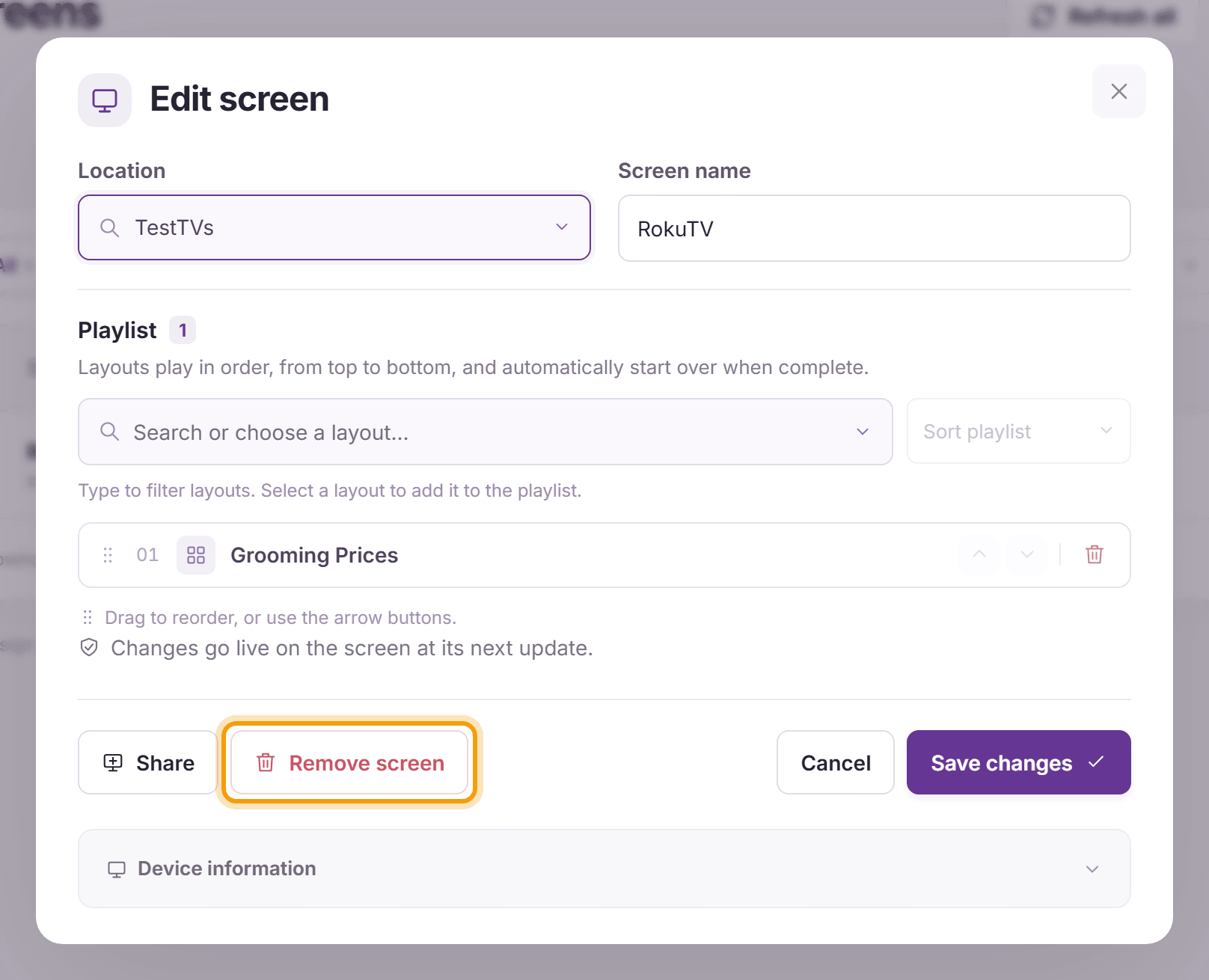
In the menu on the left, click Screens, then click Edit on the screen’s row. Click Remove screen, then Remove screen again to confirm. The screen and its playlist are removed from your account: the screen stops showing your content and is no longer counted on your account.

Replacing a device? Link the new device first, then remove the old screen. You are not charged twice as long as your number of screens stays the same. To lower your bill after removing a screen, also update the number of screens under Plan/Payment (see Pricing and Plans).
What’s next
Screens: everything else you can do on the Screens page.