
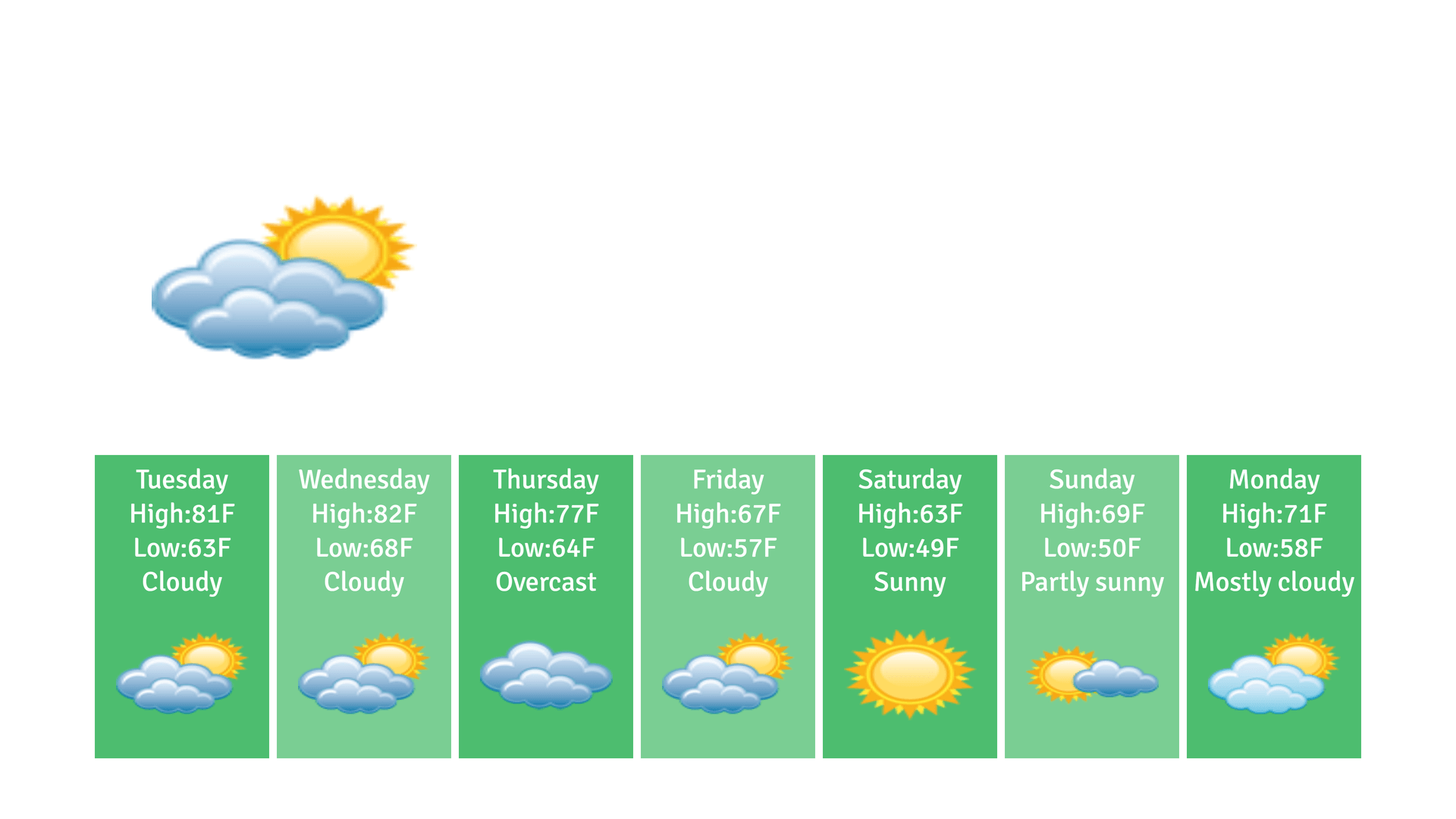
Show live weather for any location: current conditions with an hourly or 7 day forecast.
What you’ll need
- The Pro plan or higher.
- A simple layout, or a slideshow zone in a multizone layout. A layout has one weather slide; adding weather again replaces it.
Steps
-
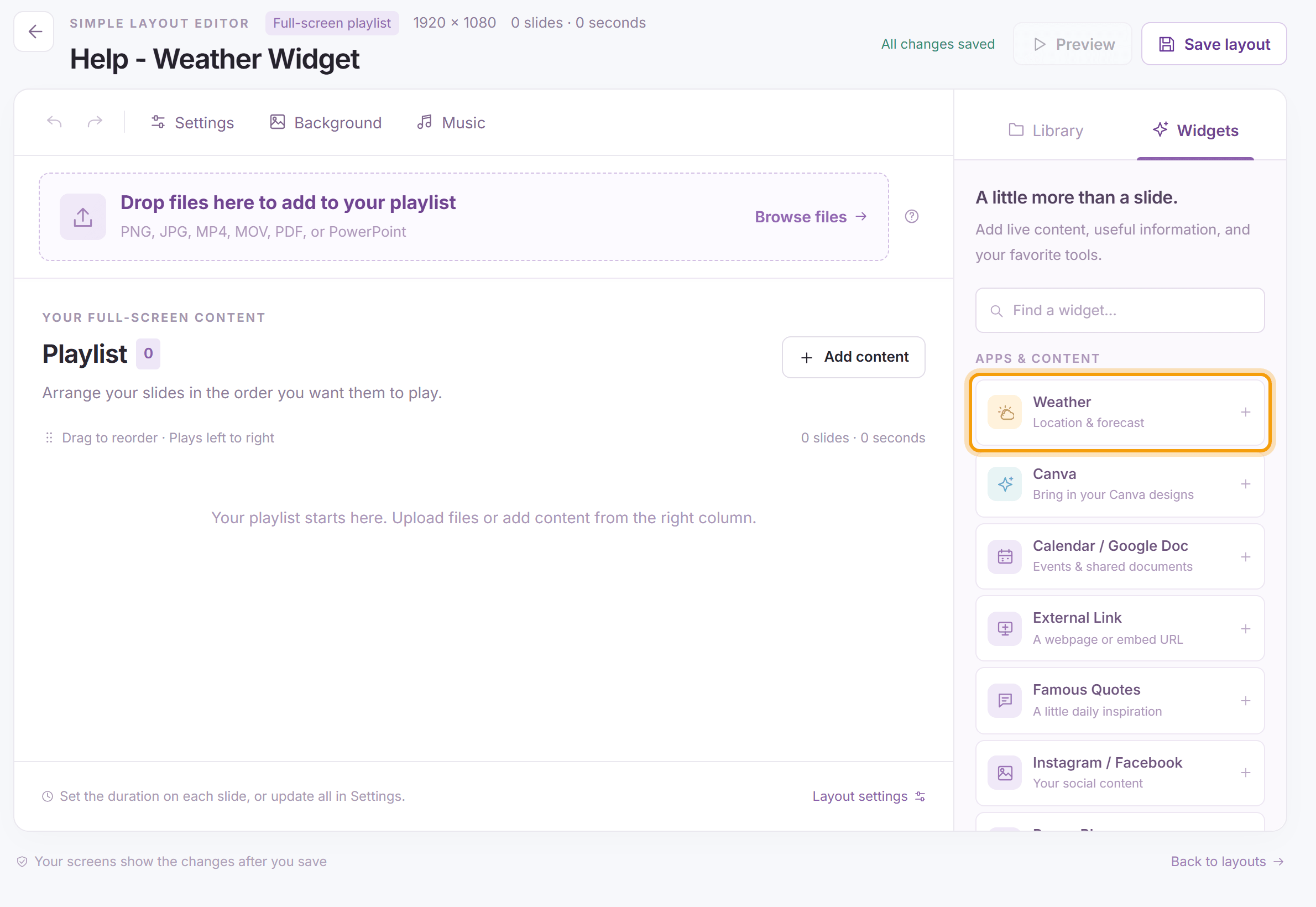
Open the layout (for a multizone layout, select the slideshow zone and click Details on the bar above it), click the Widgets tab and click Weather.
-
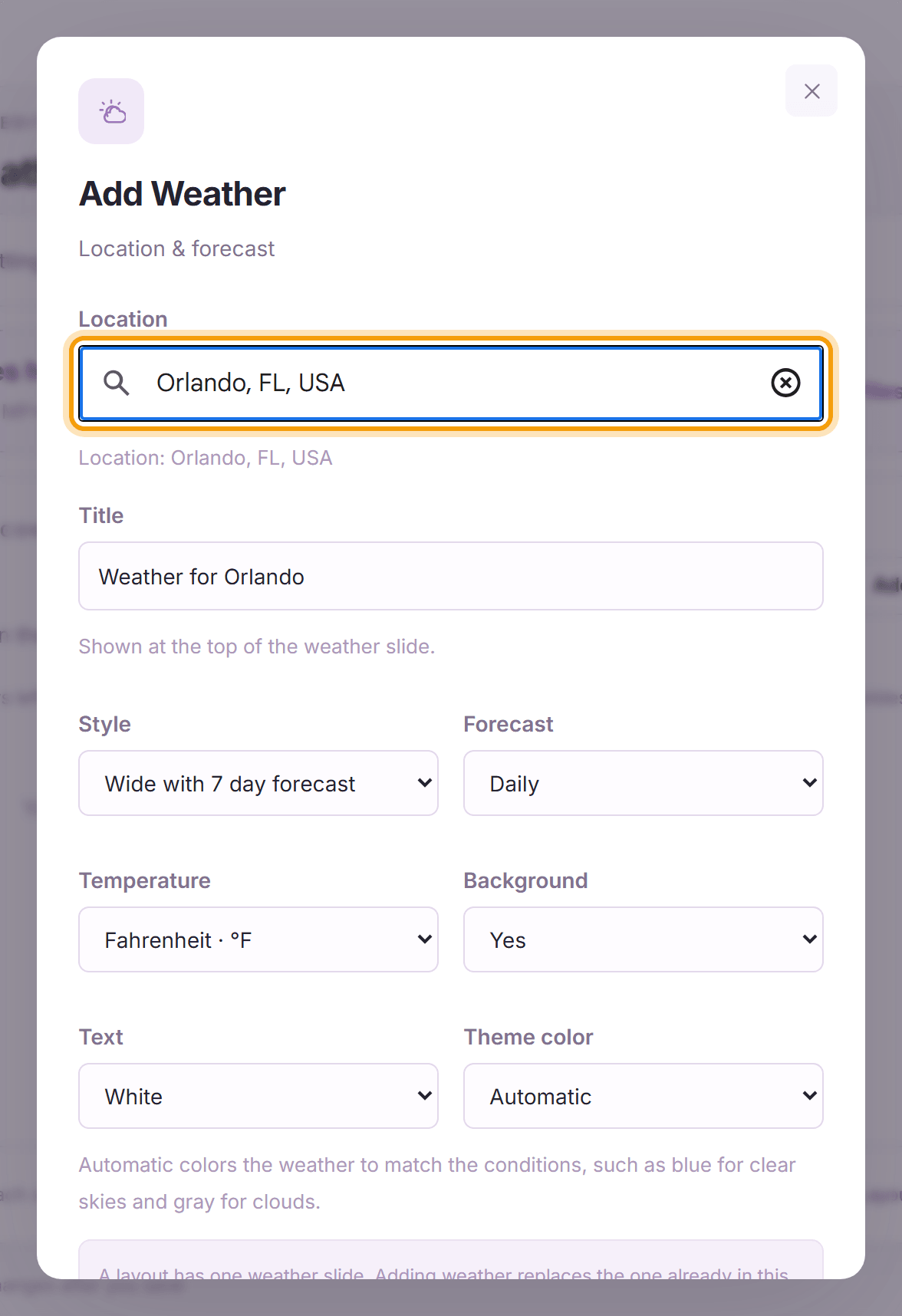
Under Location, start typing a city, address or ZIP or postal code and choose it from the suggestions. Any location in the world works. Then choose:
- Title: shown at the top of the slide.
- Style: Wide with 7 day forecast, Tall with 7 day forecast, or Square: current conditions only. Pick the one that fits the zone.
- Forecast: Daily or Hourly.
- Temperature: Fahrenheit or Celsius.
- Background: Yes shows a see-through card behind the weather; No shows the weather straight on your layout’s background.
- Text: White or Black.
- Theme color: Automatic colors the weather to match the conditions, such as blue for clear skies and gray for clouds. Choose Custom to pick one color with Custom color.
Click Add to playlist, then Save layout.
-
In the editor the slide shows a weather placeholder. Click Preview, or look at your screen, to see the live weather.


Tip: Roku screens show the Automatic colors and Background No with the Quickesign app version 10.4 or later. Older apps show the weather as before.
What’s next
Multizone Layouts: put the weather next to a clock, text and your own slides.