
Add a slideshow zone to a multizone layout to play images, videos and widgets in part of the screen. A layout can have several slideshow zones, each with its own playlist.
What you’ll need
- A multizone layout open in the editor. See Multizone Layouts.
Steps
-
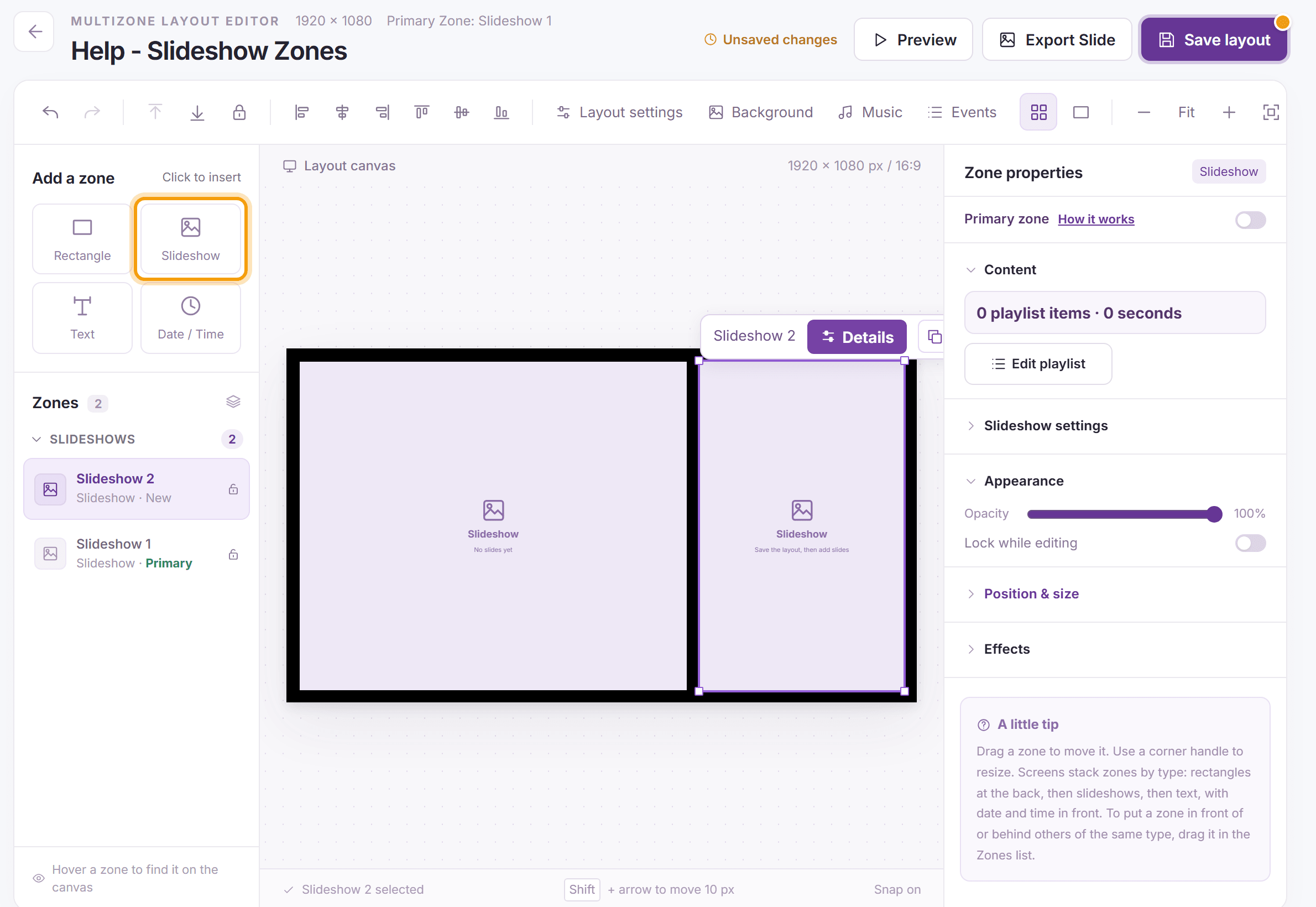
Under Add a zone, click Slideshow. Drag the new zone into place and drag a corner handle to resize it, or type its size under Position & size.
-
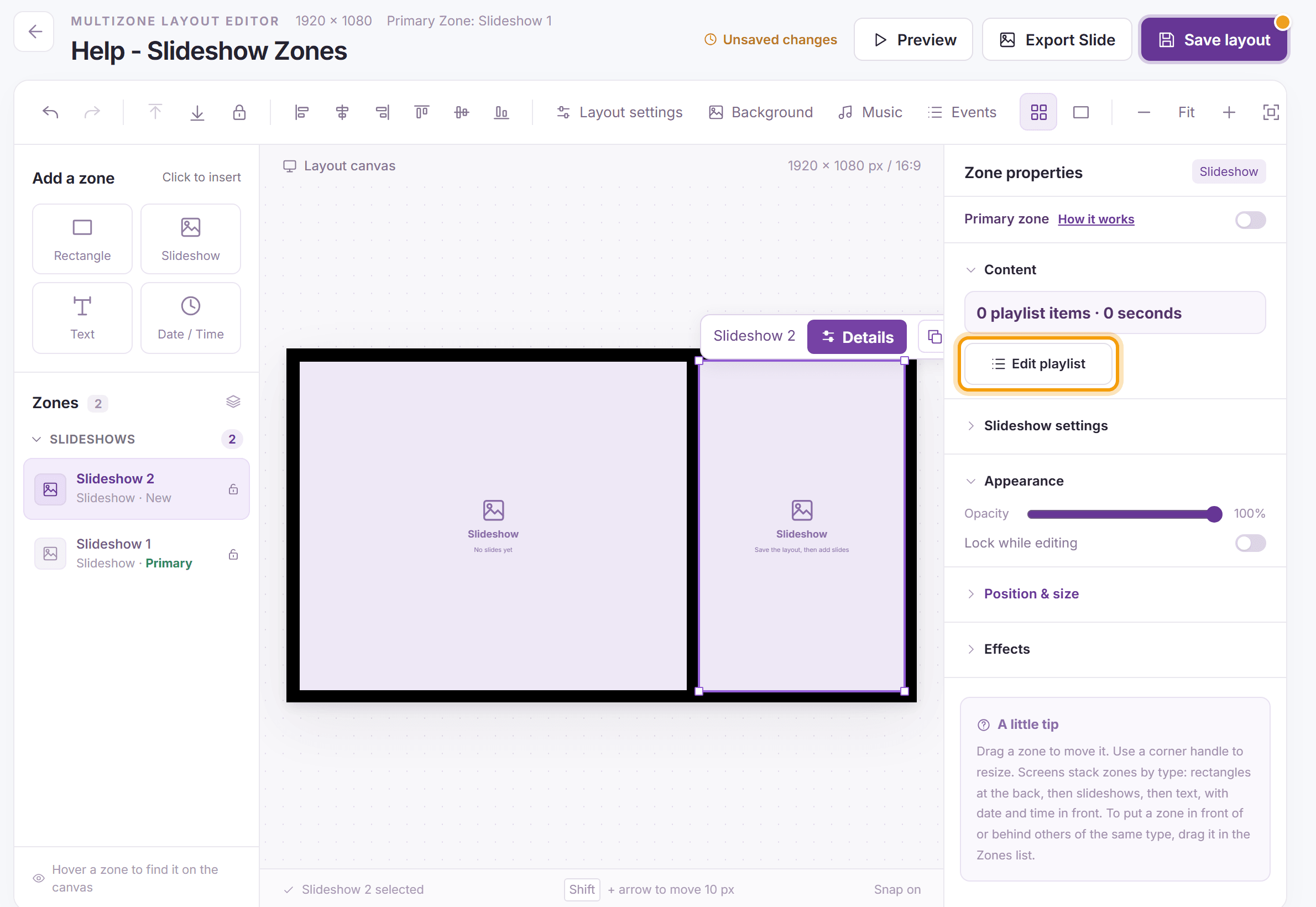
With the zone selected, click Edit playlist under Content in Zone properties (or Details on the bar above the zone on the canvas, or double-click the zone).
-
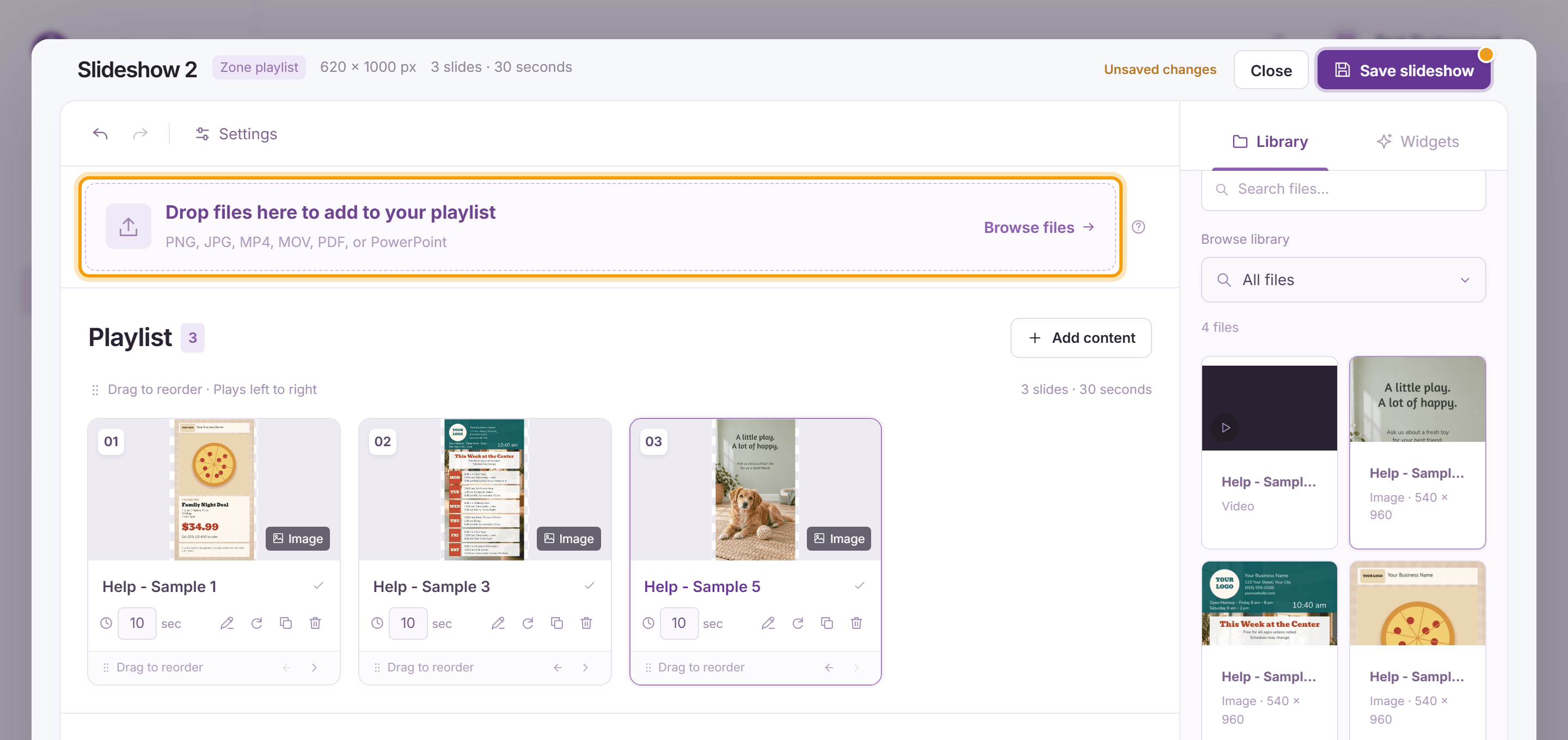
Add content: drop files on Drop files here to add to your playlist, click Browse files, or click files in the Library column. The Widgets tab adds live content such as weather and news. Set the seconds for each slide (a video always plays to the end and shows its length instead) and drag slides to change their order. The rotate button under an image or video slide turns it, as in a simple layout (see Creating a Simple Layout).
-
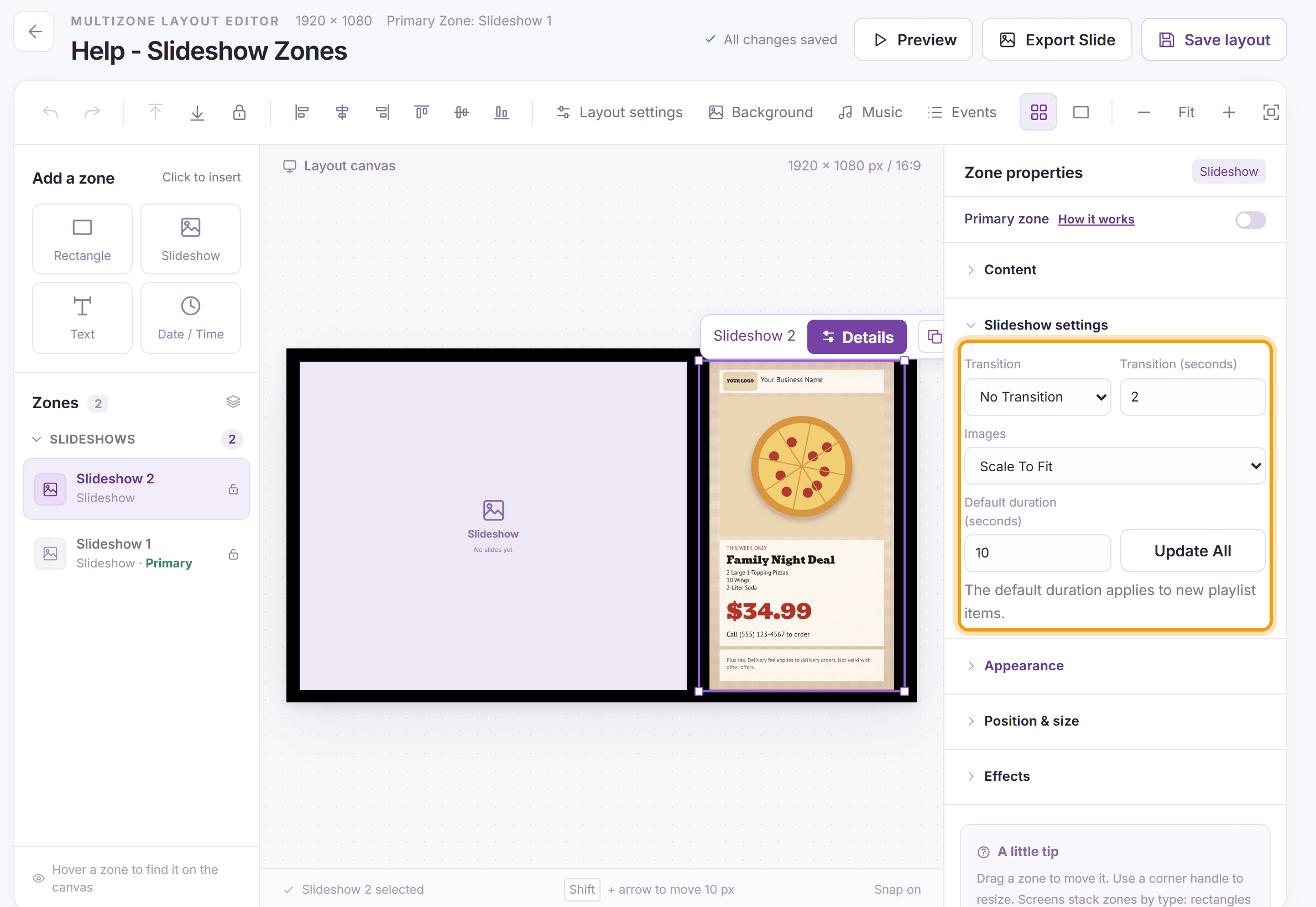
Click Save slideshow, then Close. Back in the editor, click Slideshow settings in Zone properties to open it: the Transition between slides and its length in seconds, how Images fit the zone, and the Default duration for new slides. Update All gives every slide the default duration when you save the layout; videos always play to the end. Click Save layout.
-
To round the corners, frame the slideshow or fade it in, open Effects and choose a Preset such as Rounded, Framed or Circle. See Zone Effects.


What’s next
Text Zones: add a message or a scrolling line of text.
Widgets Overview: the live content you can add to a slideshow.