
Keep your account’s name, email, address and phone up to date, confirm your email address, and change your password.
What you’ll need
- Your Quickesign login. Forgot your password? See Pricing and Plans under Signing in and your account.
Steps
-
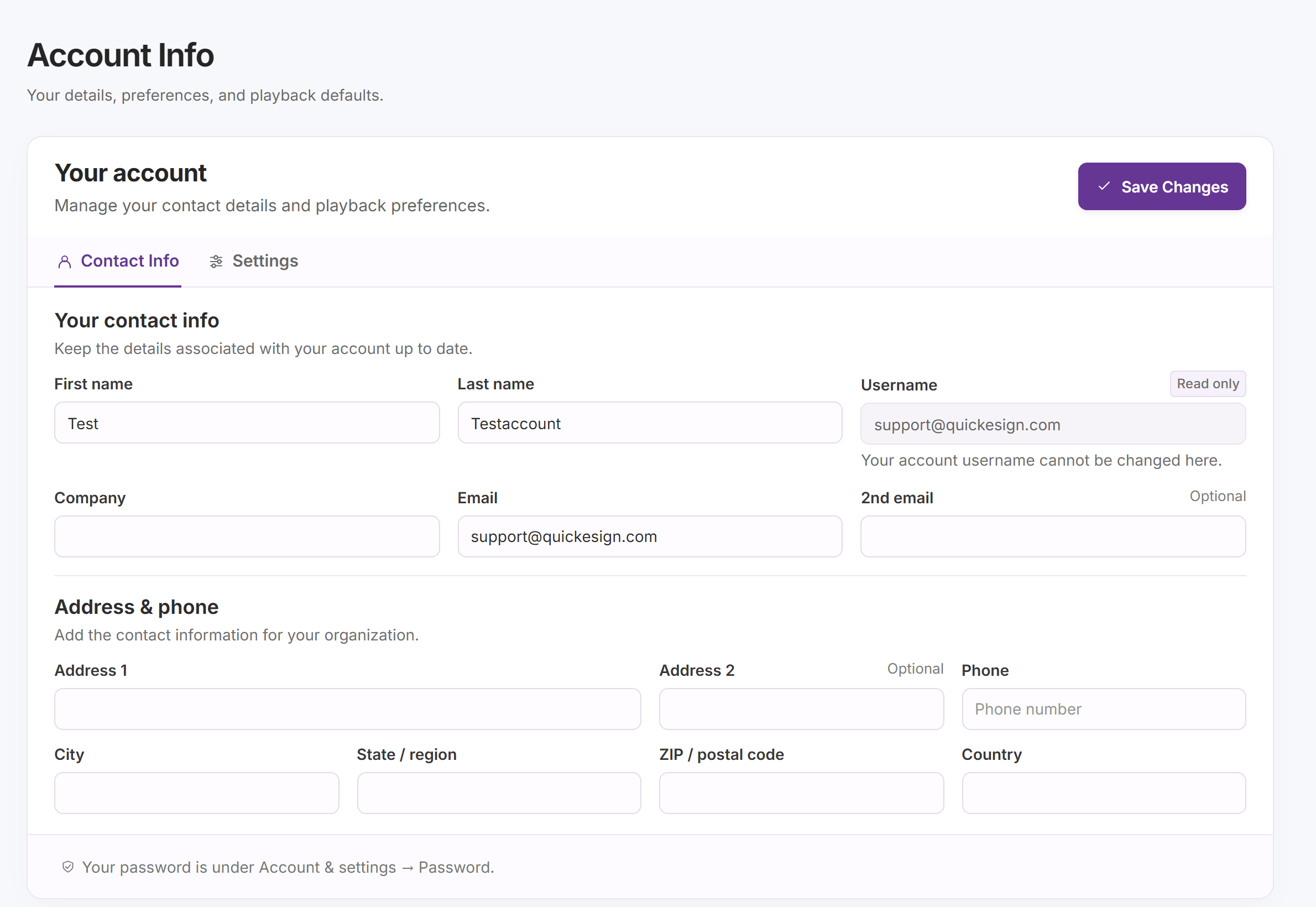
Click your name in the top right and choose Contact Info. Under Your contact info, change your First name, Last name, Company, Email and an optional 2nd email, and under Address & phone, your address and Phone. Your Username is shown but can’t be changed here; email support if you need a new one. Click Save Changes.
-
If your email address isn’t confirmed yet, the account owner sees Resend Confirm Email next to Email and Confirm by Text next to Phone. Use either one, then follow the email or enter the code. Until the email is confirmed, a new account can’t upload content.
-
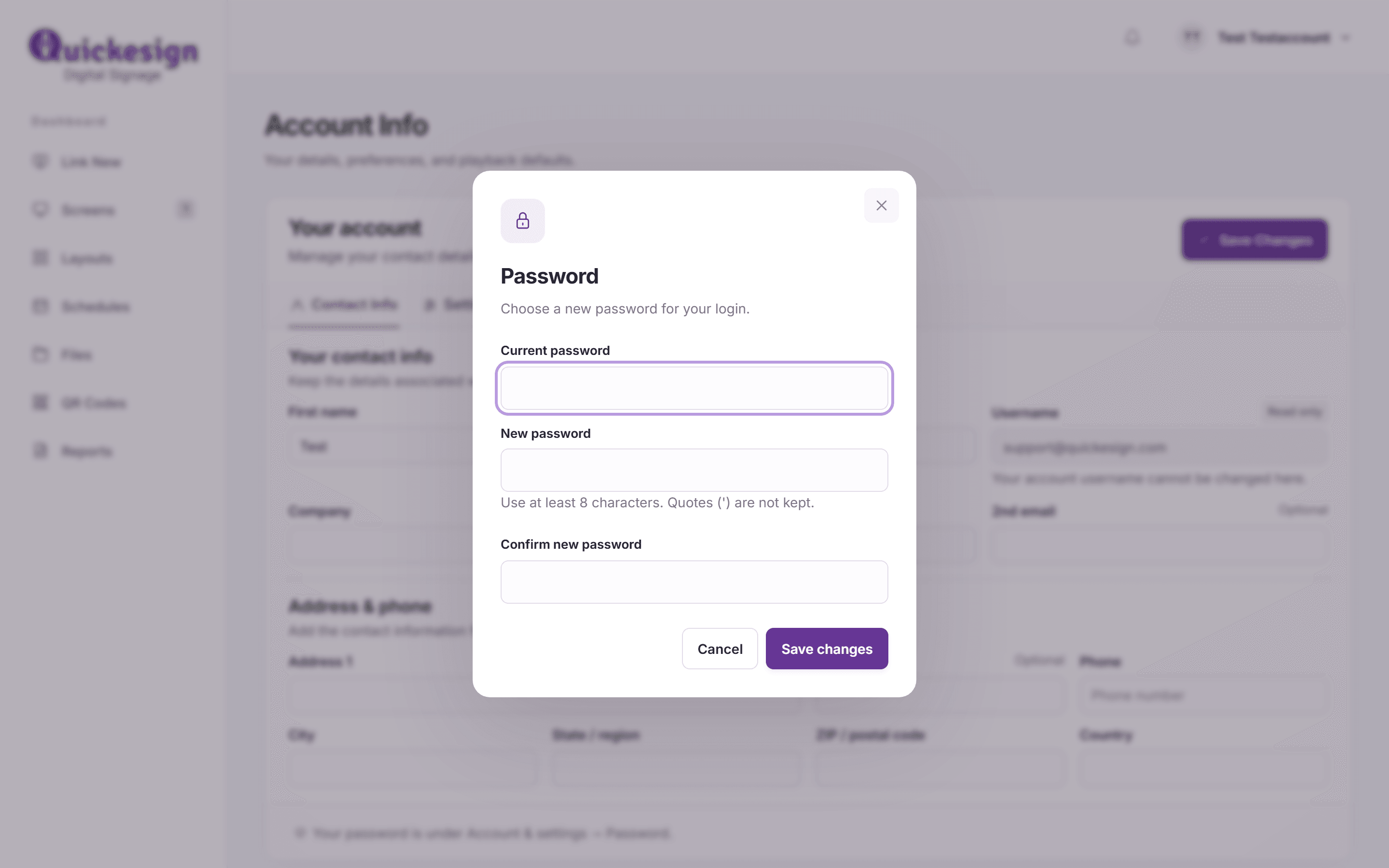
To change your password, click your name and choose Password. Enter your Current password, then the New password (at least 8 characters) twice, and click Save changes.


Tip: Accounts that sign in with Facebook have no Quickesign password to change.
What’s next
Your Account Settings: the Settings tab next to Contact Info.
Managing Your Subscription: your plan, payments and invoices.