
Choose or change your plan and number of screens, pay by card, PayPal or invoice, see your invoices, or cancel your account, all from the Plan/Payment page.
What you’ll need
- The account owner’s login. Other users can see the plan but can’t change the payment method, see the history or cancel.
Steps
-
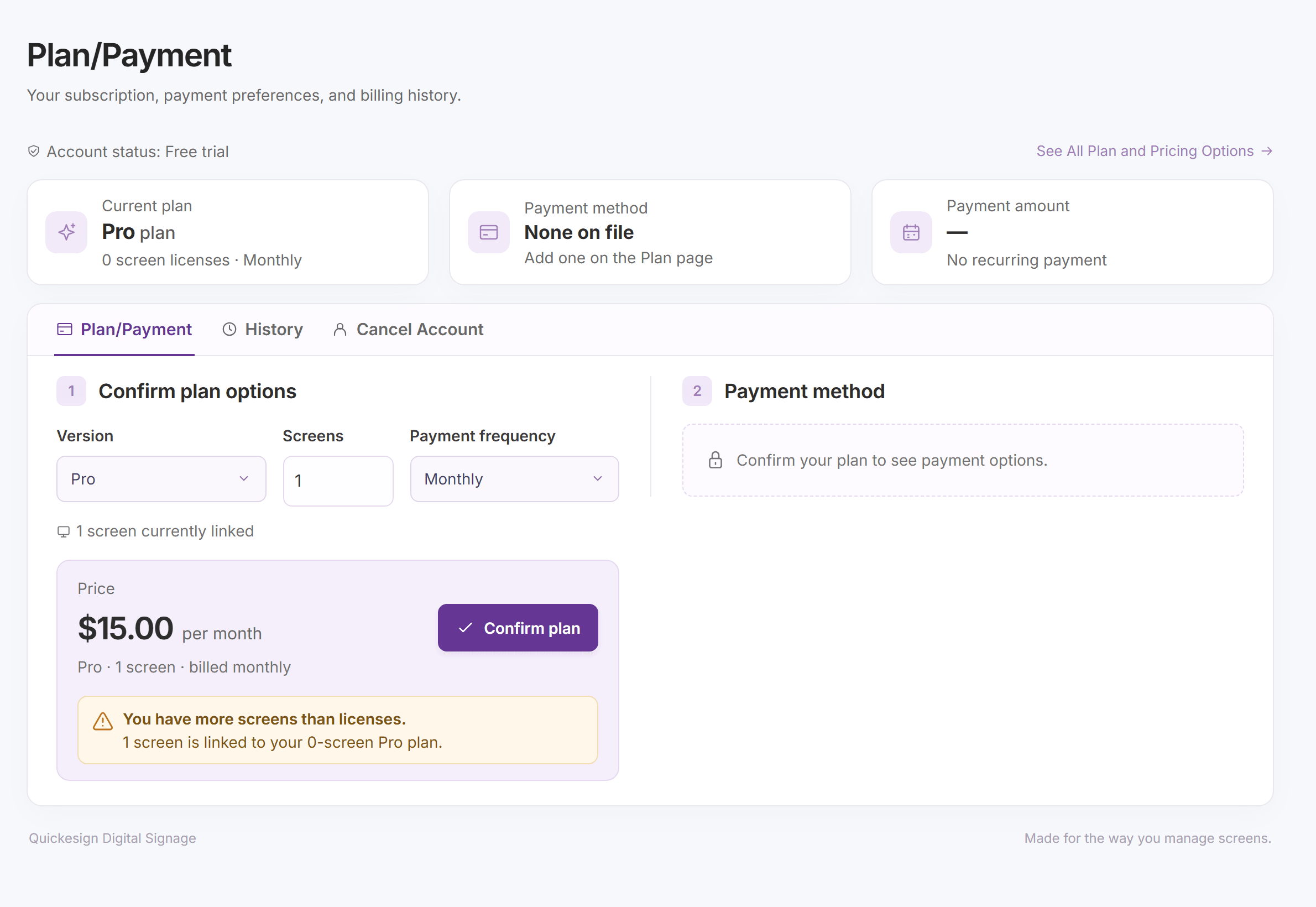
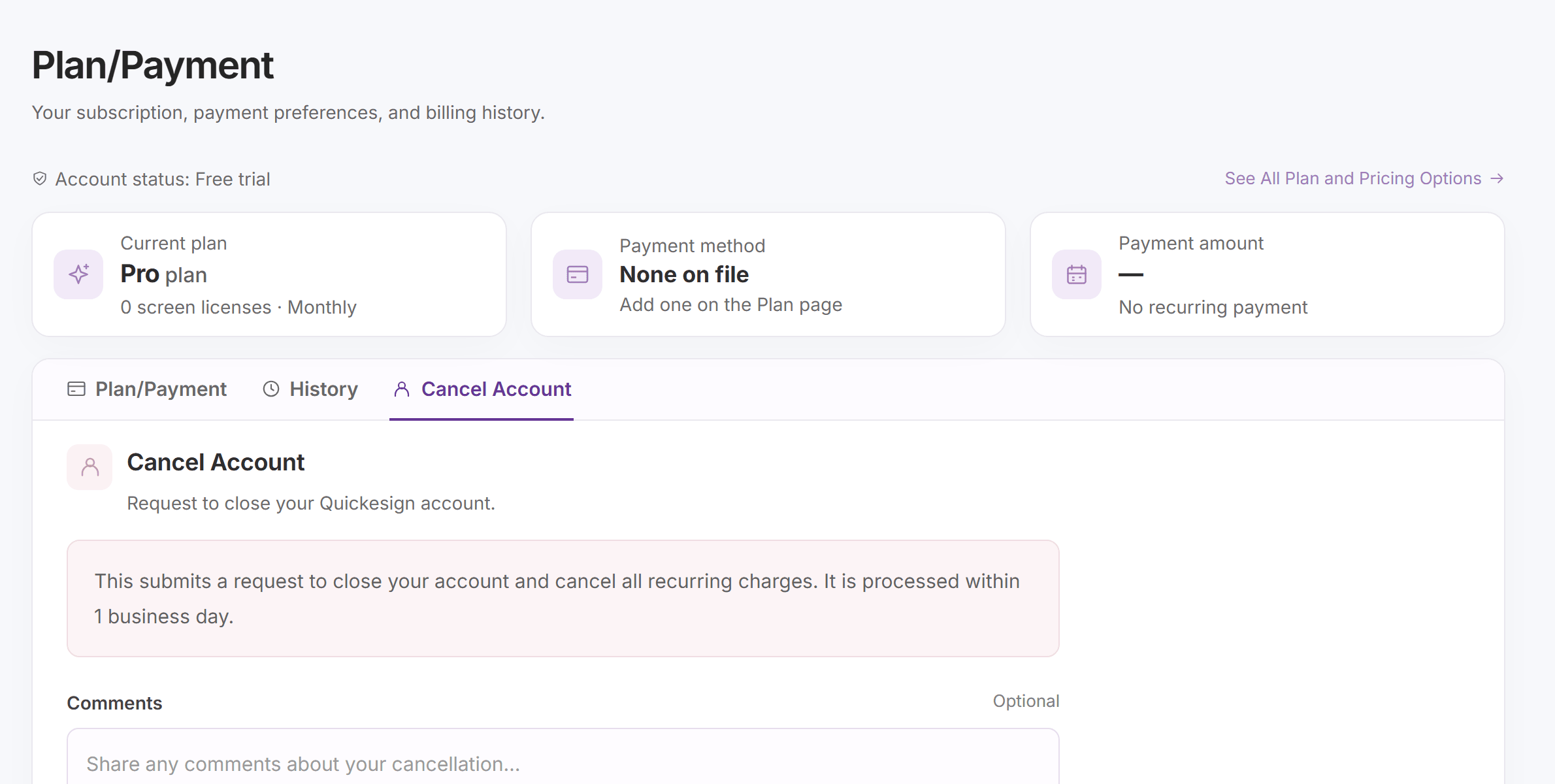
Click your name in the top right and choose Plan/Payment, or click Manage subscription on the plan card at the bottom of the menu on the left. The top of the page shows your Current plan, Payment method and Payment amount. If your account has expired, the page says so: confirm a plan and add a payment method to reactivate it.
-
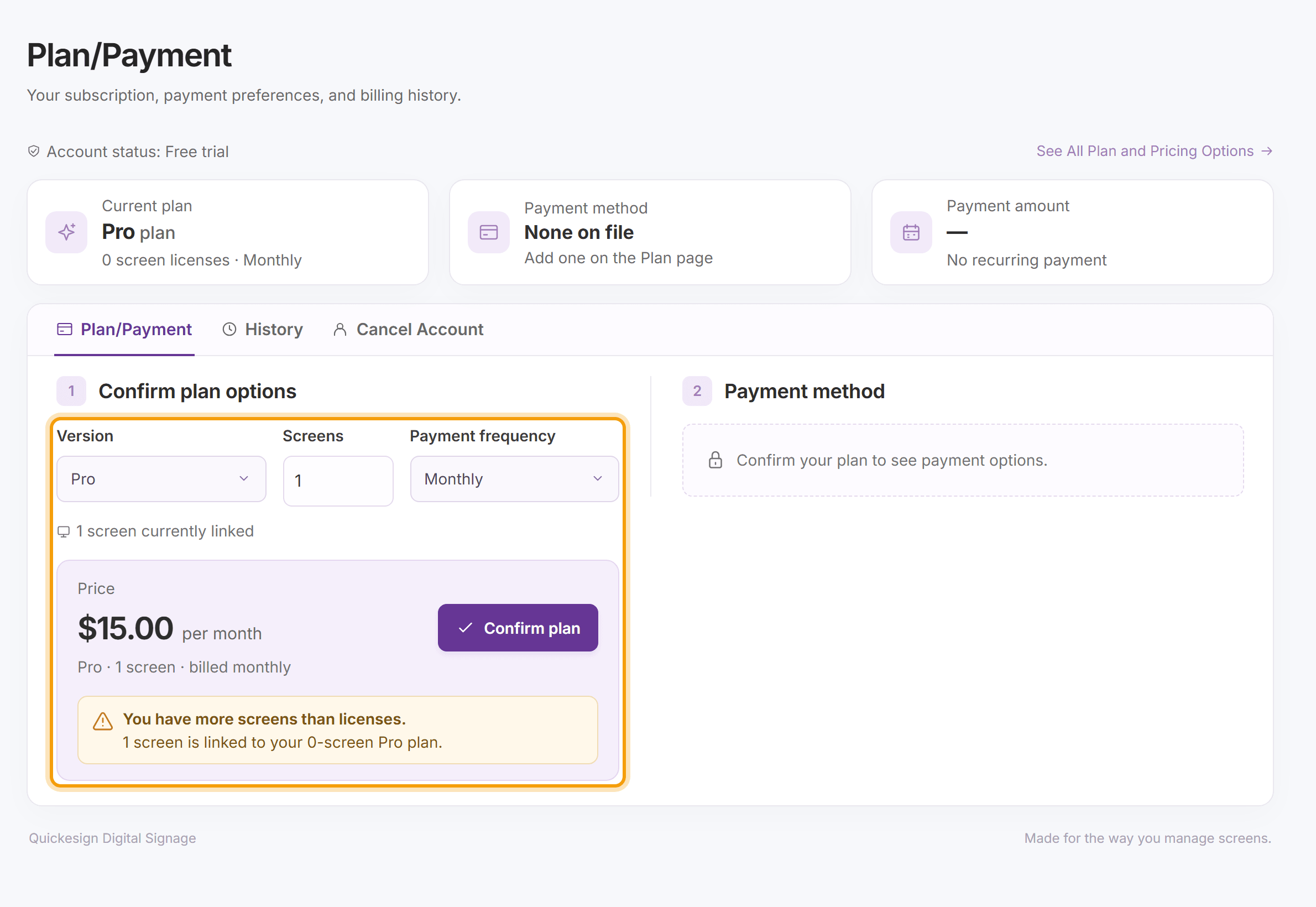
Under Confirm plan options, choose the Version (Light, Standard, Pro or Enterprise), the number of Screens and the Payment frequency (Monthly or Annual). The Price updates as you choose. You need a license for each linked screen; if you have more screens than licenses, the page tells you. Click Confirm plan, then confirm the change. See Pricing and Plans for what each plan includes.
-
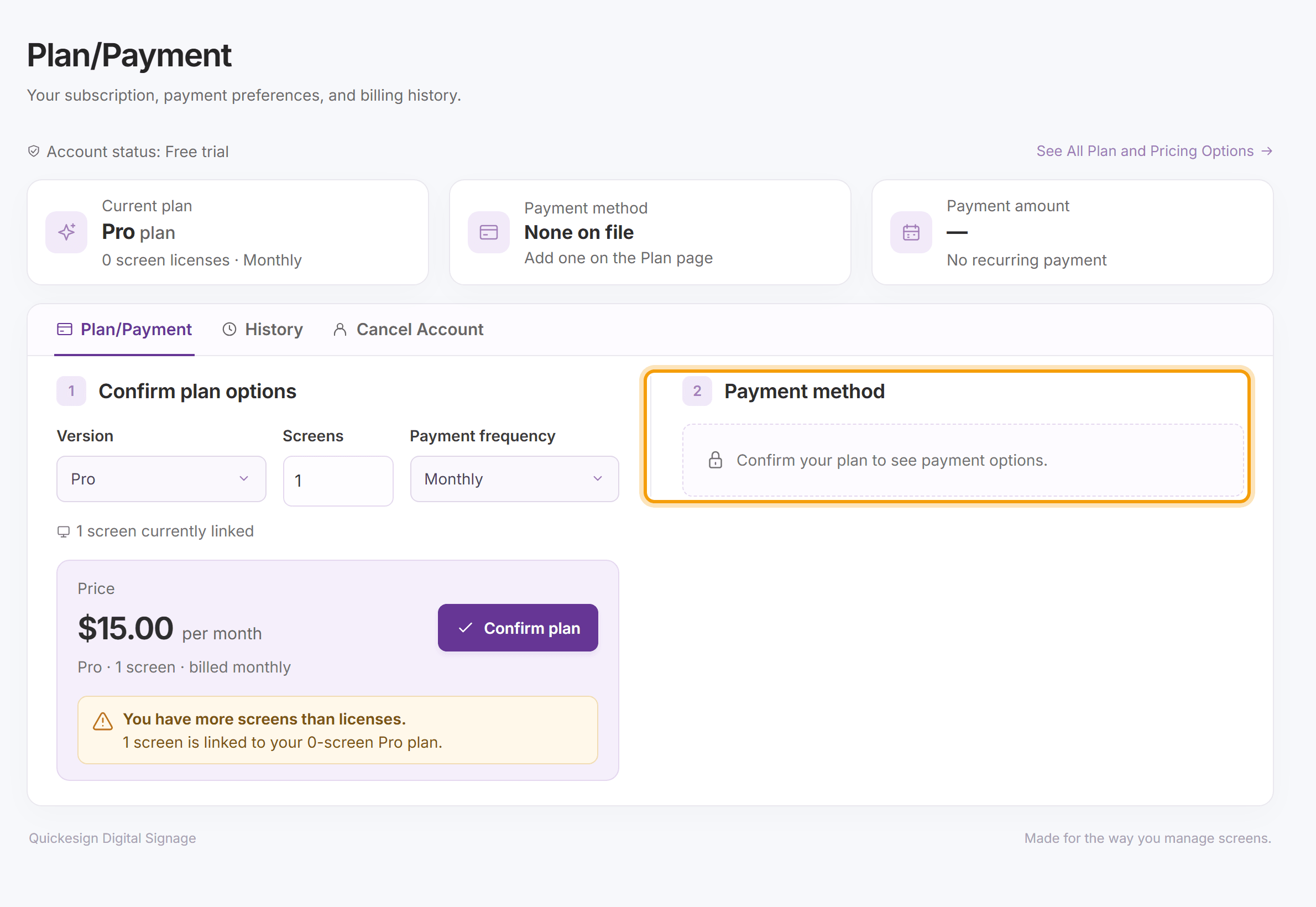
Once the plan is confirmed, Payment method opens. Choose how to pay:
- Credit card: enter a credit or debit card, then click Pay and activate (or Save card to change the card on an active account). Card payments are processed securely by Stripe.
- PayPal: subscribe with your PayPal account, for up to 20 screens.
- Request an invoice: enter the Name on invoice and where to Send invoice to, add any comments, and click Send request. The invoice can be paid by check or credit card, and we process requests within 1 business day. Sending the request reactivates an expired account right away.
-
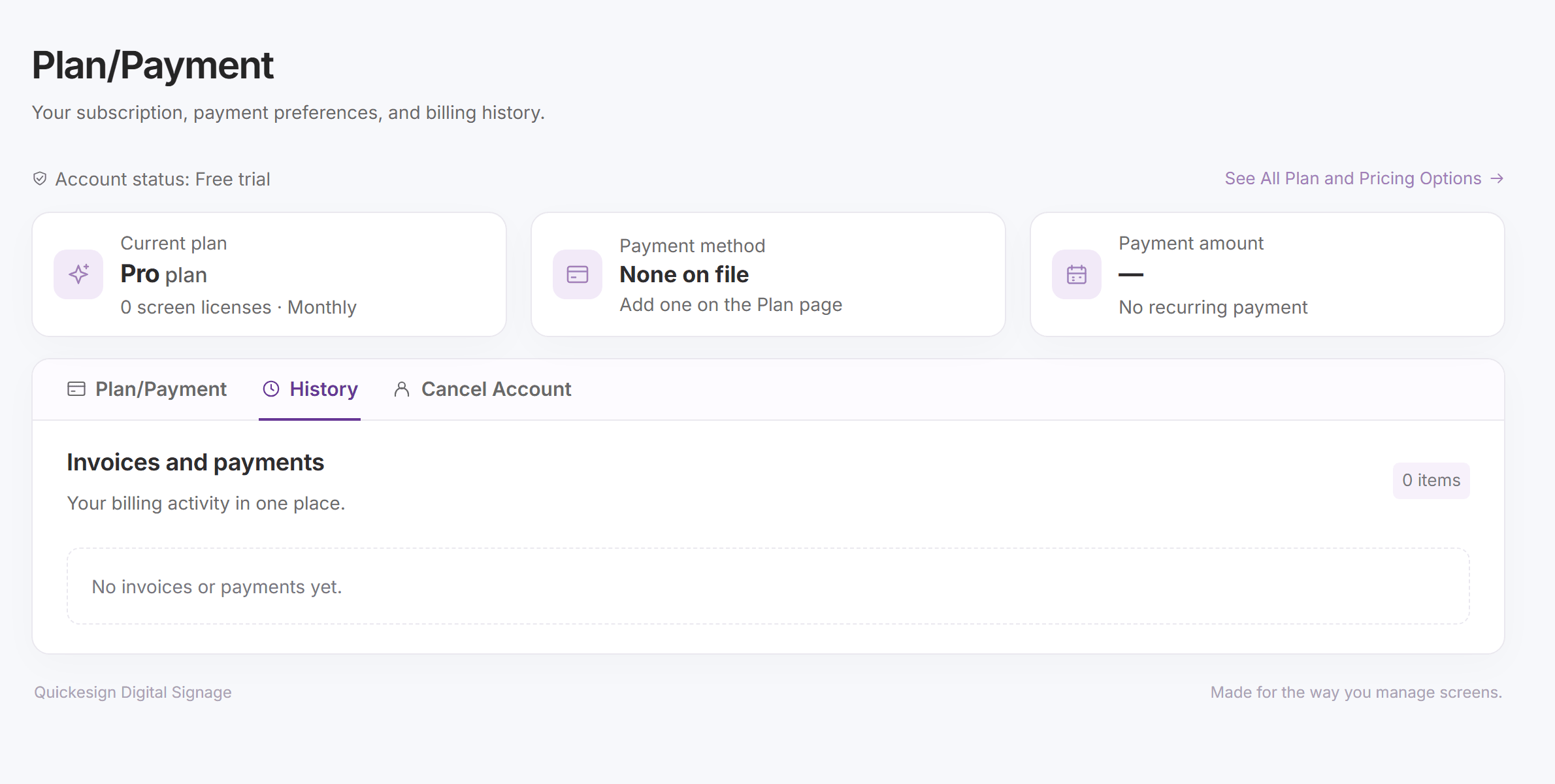
To see past charges, open the History tab. Invoices and payments lists each invoice and payment with its date and amount, and any payment that failed.
-
To close your account, open the Cancel Account tab, add any Comments if you like, and click Cancel Account. Then click Send cancellation request to confirm, or Keep my account. This cancels all recurring charges and is processed within 1 business day. Your screens keep playing until the account is closed.


What’s next
Pricing and Plans: prices, trials, failed payments and coming back after you cancel.